Profile page
The Profile page allows you to view and manage your personal information and account preferences within Kyndryl Bridge. From this page, you can review your profile details and maintain your account settings to ensure an accurate and personalized platform experience.
Manage profile settings
The profile page has important information about your account. You can identify the profile page by the user icon  , which is available in the Global header menu from any page in Kyndryl Bridge.
Access the Profile page
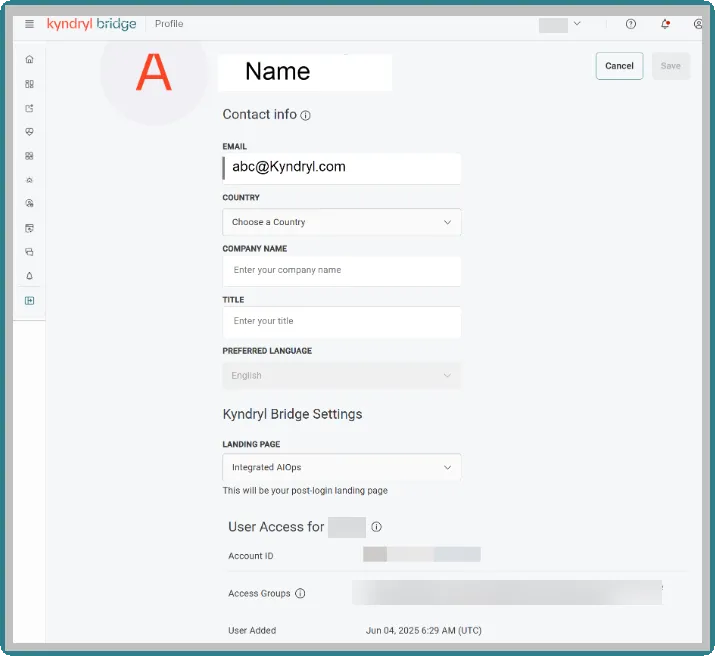
From the Global header menu, go to the Profile icon → View Profile → Edit. You can update the following:
- Profile image
- Contact information
- Country
- Company name
- Title
- Kyndryl Bridge Settings
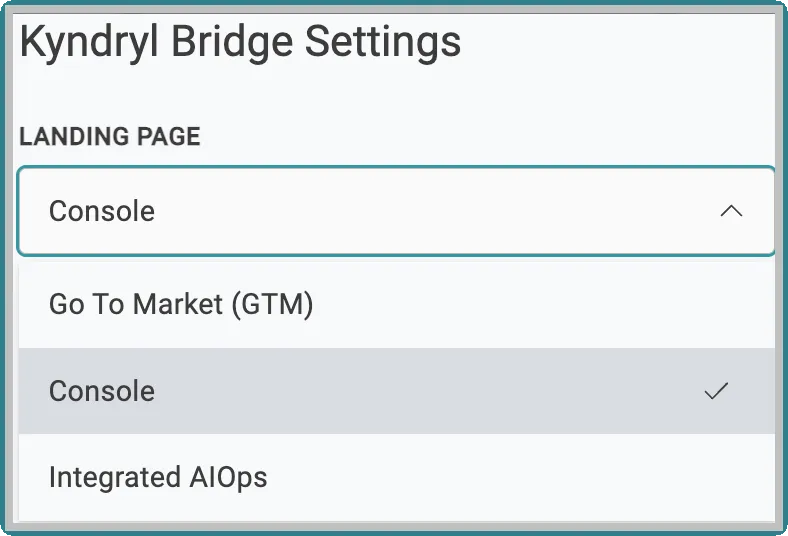
- Landing pageLanding page
Save your settings. Your updates are stored and applied on your next login.
The Profile page also displays details that can't be edited, such as your email, preferred language, and user access. Your account administrator manages these values.
Landing page
The preferred landing page option lets you choose where Kyndryl Bridge takes you right after login. You can personalize your experience and land directly on the workspace most relevant to you. Select one of the available options: Console, Go To Market (GTM), or Artificial Intelligence for IT Operations.
TheArtificial Intelligence for IT Operations and Go To Market services are only available to Kyndryl internal users.