Drill Planner
The Drill Planner is designed for a specific customer to manage Disaster Recovery (DR) test results periodically (quarterly, annually, etc.). It enables users to upload data related to DR drills for multiple applications and view the results in a dedicated dashboard.
It helps organizations track and analyze DR test outcomes, including metrics such as:
- Number of tests completed
- Tests passed or failed
- Pending or overdue tests
This data is used to ensure compliance and readiness for disaster recovery scenarios.
Process flow diagram
The following diagram illustrates the underlying process flow:
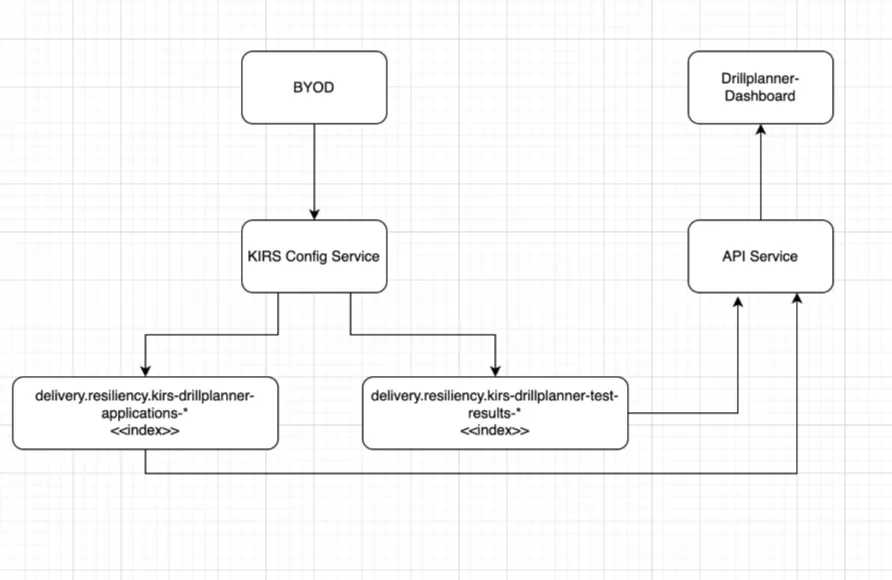
Process
Follow these steps to complete the process:
- Download the template: Navigate to the Bulk Configure screen and download the Standard Drill Planner CSV Template. Then, go to Download > Standard Drill Planner CSV template. This template includes all required fields for data entry.
For more information related to the Bulk Configure screen, go to: Bulk Configuration.
- Populate Data: Fill in the template with DR test details for each application.
CSV file for uploading drill results
The following fields are mandatory to fill in the downloaded CSV file. You must ensure to populate the following information before uploading the CSV file.
- App ID: Unique identifier for the application.
- Short Name: Short name of the application.
Columns descriptions
See the following column descriptions:
- App ID: Unique identifier for the application
- Short Name: Short name of the application
- Platform: Open System, Cloud, Mainframe
- Resiliency Tier (RT): Tier 1, and 2 (Application needs to be tested every year from the date of the last test), Tier 3 (Application need to be tested 2 years once)
- Category: SST (Steady State Test), FTE (First Time Enablement), Re-Cert (Re Certification)
- Disaster Recovery Status: Enabled / Not Enabled
- MF Dependency: Yes / No
- Planned Start Date: Date of DR test
- Status: Pass / Fail
- Upload the CSV file: Use the Quarterly Drill Results Upload Template option on the same screen to upload the populated CSV file. Click Create > Quarterly Drill Results Upload Template.
- Validation Rules: Application ID and Short Name must be present. Blank rows will be ignored.
- View Results: After a successful upload, the data will be processed and displayed in the Drill Planner dashboard.
Access the Dashboard
To access to this dashboard, from the Kyndryl Bridge main menu  , go to Services → Kyndryl Services → Intelligent Recovery Services → Recovery Dashboard menu → Dashboard → Drill Planner.
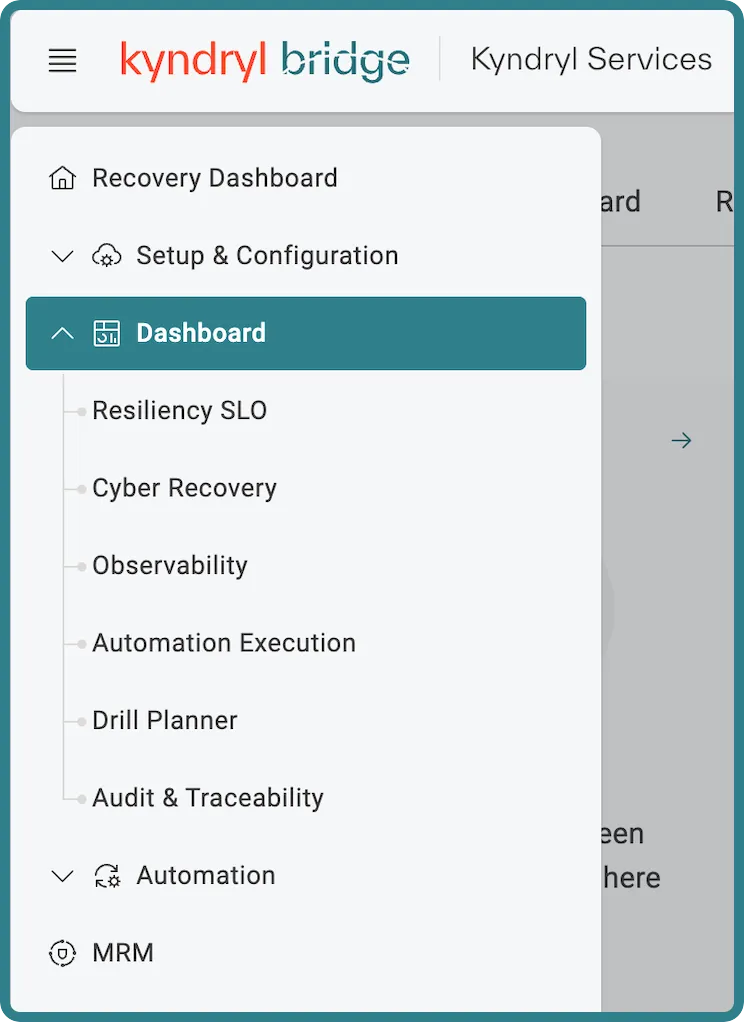
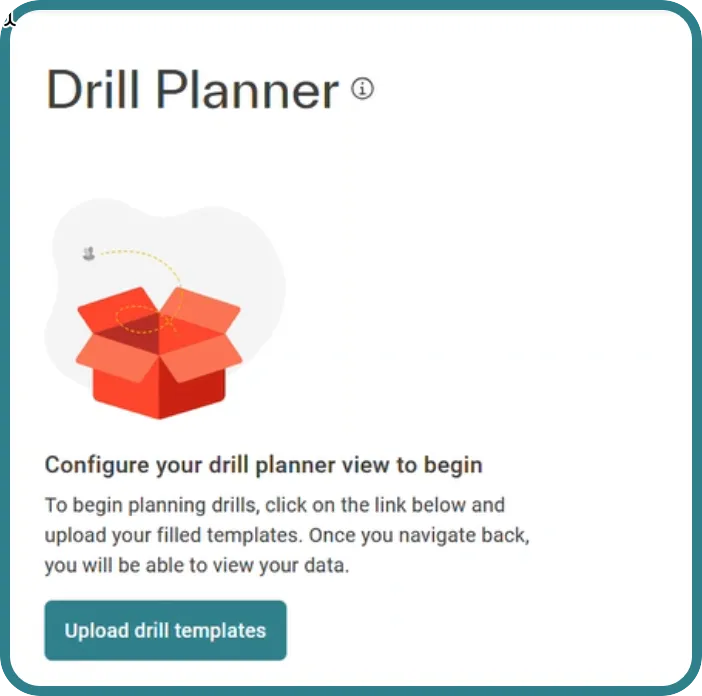
If you have not uploaded the completed CSV file to the Bulk Configure screen, the following message appears. Click Upload drill templates to go to the Bulk Configure screen.
After the CSV file is uploaded, the Drill Planner dashboard displays the validated data. When users upload Q4 information, a message with a refresh link appears. This indicates that the dashboard is displaying the current year's data and is ready to show next year's data.
Refreshing resets the information, recalculating pending and overdue items for all applications.
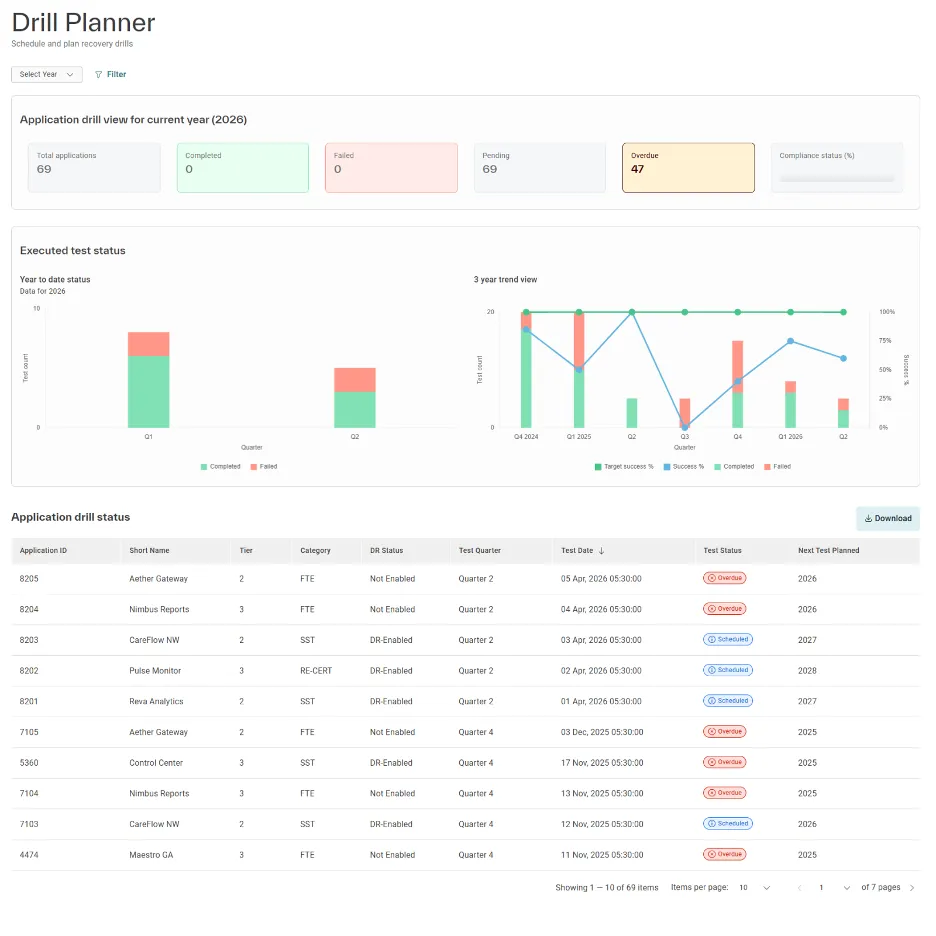
Features
The following features are available in this dashboard:
- Filters: The Filter feature enables users to refine the dashboard view by applying specific criteria after uploading a CSV file. Users can expand or collapse filter options, select applications and states from the available choices, and apply the filter to update the displayed data. Once applied, all dashboard elements, including graphs, widgets, and the data table, dynamically adjust to reflect the selected filters, ensuring a tailored and focused data view.
- Key Metrics:
- Total Applications: Displays the total number of applications included in the uploaded data.
- Completed: Shows the count of successful DR drills.
- Failed: Indicates the number of drills that were executed but failed.
- Pending: Represents applications that still need to be tested. This includes overdue items, failed drills, and those scheduled for the current cycle.
- Overdue: Calculated during the year-end process. It includes drills that were supposed to be executed but were missed or failed in the previous year.
- Compliance Status: Displays the percentage of successful vs. failed drills in a graphical format for quick compliance assessment.
- Select Year: The Drill Planner includes a year‑based view that helps users to review drill data for both the current and previous years. For the current year, the view displays planning‑related metrics such as Pending and Overdue drills, along with the Next Year Planned information. When a past year is selected, the Drill Planner automatically switches to a historical view: Pending and Overdue metrics are hidden, the Next Year Planned column is omitted from the Application Drill Status table, and only outcome‑based metrics such as total, completed, failed, and compliant drills are shown. In addition, the metrics section heading updates to reflect the selected year, making it clear which year’s data is being viewed. Filters, table data, and downloads update dynamically based on the year selection, while the 3-year trend view remains unchanged to provide consistent long‑term insights.
- Graphs
- Current Year View (Left): Shows quarterly drill results for the current year, including pass/fail counts.
- Three-Year Trend (Right): Consolidates data for the last three years (e.g., 2023, 2024, 2025), highlighting success and failure trends.
- Success Percentage Line: A blue line indicates the success rate for each quarter. Hovering over a point shows detailed percentages.
- Target Indicator: A green line indicates the target success rate for comparison.
- Download: The Download button allows users to export the data displayed in the dashboard’s data table into an Excel file for offline viewing. The downloaded file exactly matches the table, preserving column names, order, and data integrity. When filters are applied, only the filtered data is included in the download.
- Application drill status
- Application ID: A unique identifier assigned to each application.
- Short Name: A short or abbreviated name for the application.
- Tier: Indicates the resiliency tier of the application, which determines drill frequency:
- Tier 1 & Tier 2: Highest priority; drills performed annually.
- Tier > 2: Lower priority; drills performed once every two years.
- Category: Specifies the type of drill activity:
- SST: Steady State Test
- FTE: First Time Enablement
- Re-Cert: Recertification
- DR Status: Shows whether Disaster Recovery is enabled for the application:
- Enabled or Not Enabled
- Test Quarter: Indicates the quarter in which the drill was performed (e.g., Q1, Q2, Q3, Q4).
- Test Date: The exact date when the drill was executed.
- Test Status: Represents the current status of the drill:
- Scheduled: Drill planned but not yet executed
- Success: Drill completed successfully
- Failed: Drill executed but failed
- Overdue: Drill was due but not performed within the scheduled cycle
- Next Test Planned: Displays the next scheduled drill date, calculated based on the application’s tier and previous execution date.