Onboard an account
Intelligent Recovery Service uses AIOPS platform services like Automation Service, and CACF to provide Orchestration and Monitoring for DR and CIR Solutions.
The following instructions guide you through the steps to gain access, and enable the account.
Prerequisites
- Account should be onboarded to Artificial Intelligence for IT Operations - Owner Account DPE.
- To request the Onboarding of accounts in Intelligent Recovery Service, accounts must be previously deployed in Artificial Intelligence for IT Operations, to make this request follow Account Onboarding to Integrated AIOps steps.
- For Strategic Markets clients, fill out this Onboard Form to start with the necessary processes.
- Account should be onboarded to Account Onboarding to CACF - Owner Account team.
- Onboarding account to Automation Service - Owner Account team.
Onboard an account
To onboard an account, follow the steps below:
- Enable Resiliency Intelligent Recovery Service Catalogue - Owner- Account DPE.
- To enable or subscribe Intelligent Recovery Service to an account, the user must have account-admin privileges for that account (Organizational Unit).
- Log in to the delivery.kyndryl.net
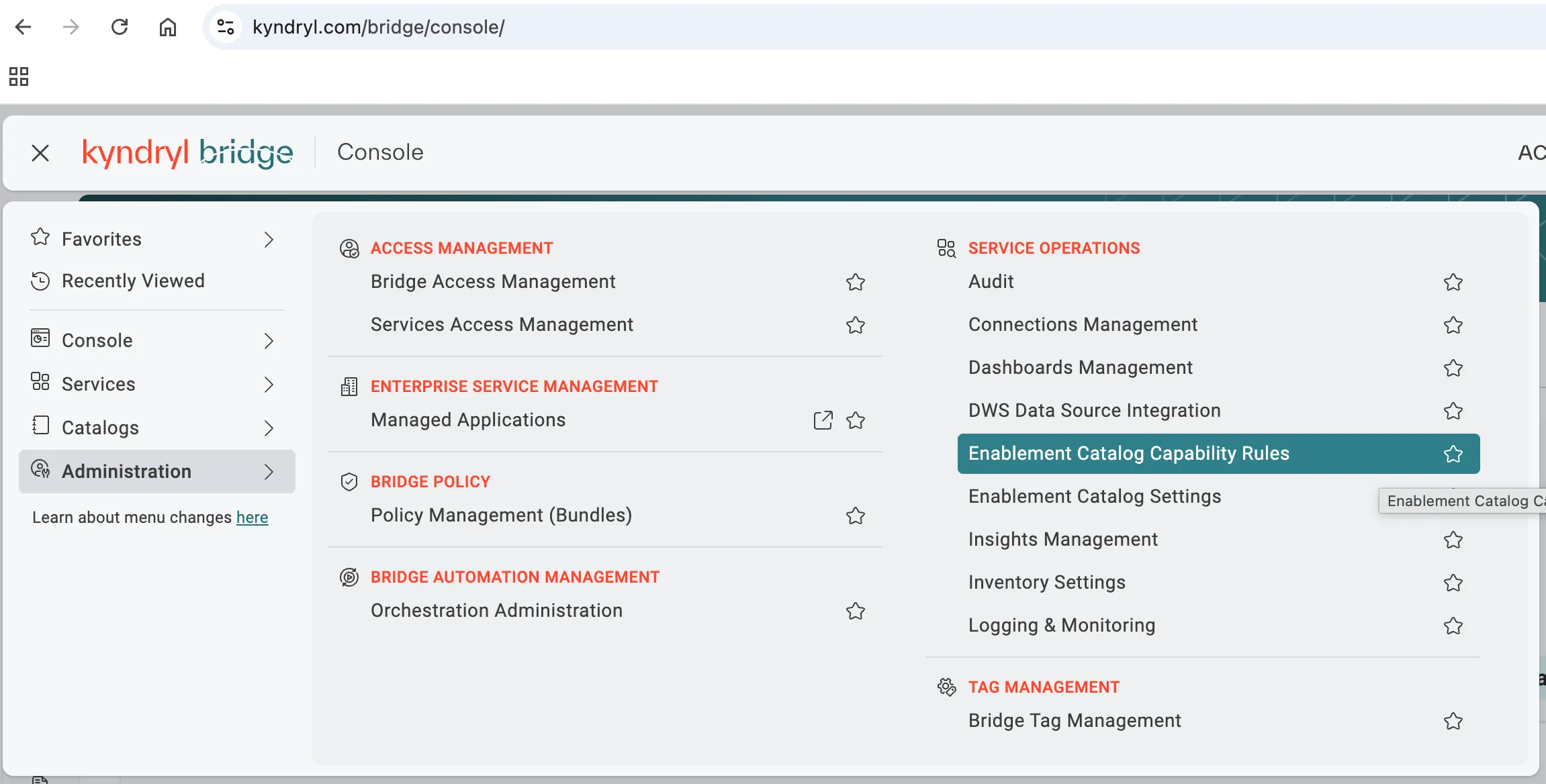
- From the main menu, click Administration and go to Enablement.
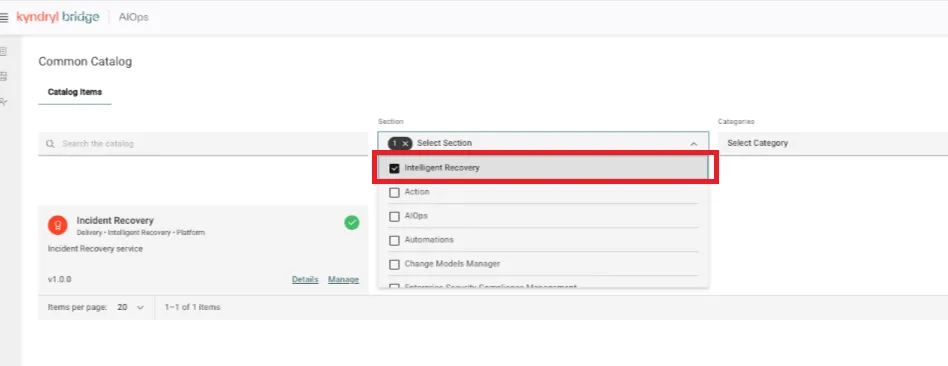
- In the Section dropdown, select Intelligent Recovery.
- Find Incident Recovery in the services list and click Manage.
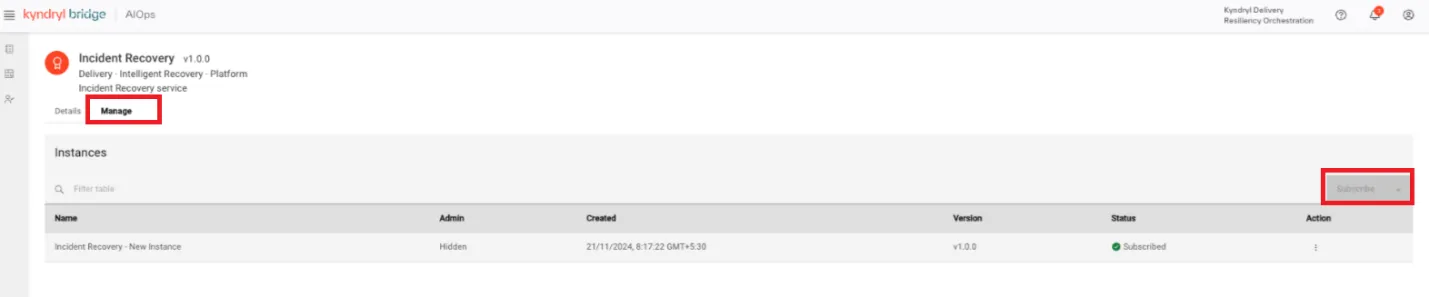
- On the next page, click Subscribe to enable the service.
- Determine your Access Profile - Approval - Account DPE.
- Request the profile, Individual via ARMS.
- Access Intelligent Recovery Service.
Owner - Intelligent Recovery Service Delivery
- Data collection for onboarding customer workloads onto Intelligent Recovery Service.
- Inventory and runbooks.
- Exercise to determine the out of box solutions and customize the blueprint and solution if required.
- Develop a solution guide.
- Implement customization if required.
Configuring Tower for Intelligent Recovery Service operations
Owner – Delivery and Account TAA
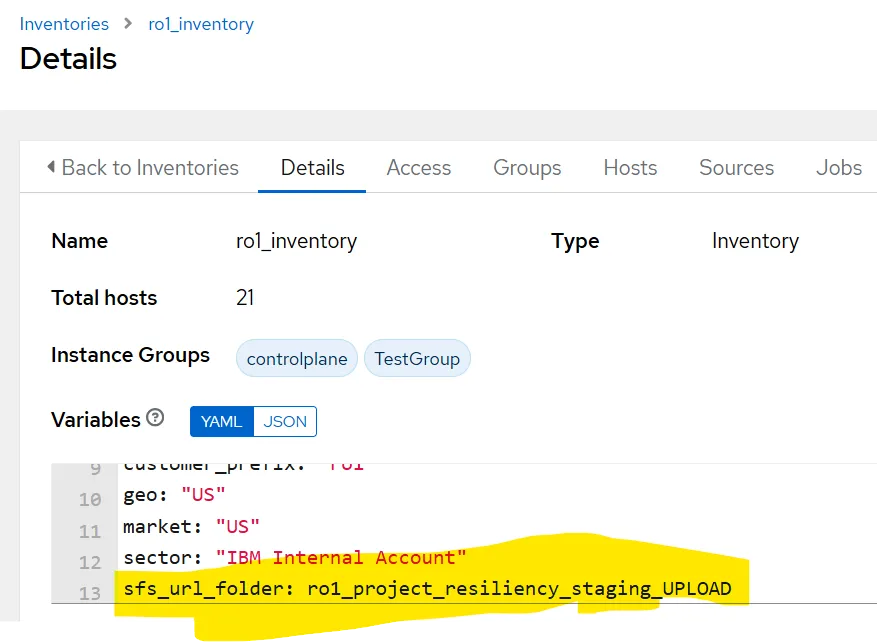
- Add Resiliency specific variables to Tower: In the tower setting, update the following:
- SFS_UPLOAD_URL will be in the Job Settings
- sfs_url_folder will be taken from the inventory

- Add Hosts with define credential type. The details are as follows:
- Credential Type *: Red Hat Ansible Automation Platform
- Red Hat Ansible Automation Platform: URL
- Username: User ID (This field is optional)
- Password: Password (This field is optional)
- Auth Token: Token ID ((This field is mandatory)
- Organization: Current Organization Mapped to the Organization of the Client
- Name of the Credentials should be <org>_cred_tower
Create Project and select the right Solution(blueprint)- Setup and Configuration.
Steady State Operations - The user must have Incident Recovery Viewer role privilege.
(Optional) Netcool extension for Intelligent Recovery Service
If the customers want to use the Netcool service (customer’s own service or Kyndryl’s Netcool service) for a consolidated view of the alerts, refer to the topic for the steps to deploy the Netcool extension of Intelligent Recovery Service.
(Optional) Workflow approval configuration user guide
The workflow approval configuration in Intelligent Recovery Service allows users to define approval requirements for workflows using the Bridge policy service.
- Approval is configured by solution (blueprint) and operation type.
- Supports single-level and dual-level approval.
Policy service evaluates approval rules during workflow execution.
Prerequisites
Ensure that the following prerequisites are completed before the configuration:
- Policy service enabled.
- GitHub repository for policy bundles available.
- GitHub access token with read access.
High-level flow
User the following steps to configure workflow approval:
- Create new GitHub repository:
- Create a new repository. Refer this README to create a Github Repo for policies: https://github.com/kyndryl-cto/bdg-gps-res-kirs-workflow-approval-policy-template/blob/main/README.md
- Follow the policy bundle folder structure (Rego + data.json). Use sample template repository: https://github.com/kyndryl-cto/bdg-gps-res-kirs-workflow-approval-policy-template
Create GitHub connection
To create a GitHub connection, see the following steps:
- Navigate to Bridge → Connections Management.
- Add GitHub Content Connection.
- Provide repository URL, username, token, branch.
Create policy bundle
- https://kyndryl.sharepoint.com/sites/Policy-and-Automation/SitePages/Policy.aspx#creating-policy-bundles
- https://kyndryl.sharepoint.com/sites/Policy-and-Automation/SitePages/POA-Onboarding-and-Enablement.aspx#manage-policy-bundles
- Navigate to Manage & Administer → Policy Management.
- Click Create Bundle.
- Provide bundle name as approval
- Select GitHub connection and repository details.
Publish and activate policy bundle
https://kyndryl.sharepoint.com/sites/Policy-and-Automation/SitePages/POA-Onboarding-and-Enablement.aspx#publish-policy-bundle
- Build the bundle.
- Publish the bundle.
- Activate the account.
- Only Active bundles are used during workflow execution.
Subscribing to Intelligent Recovery Service dashboards
The following dashboards are available for subscription for Intelligent Recovery Service:
- SLO Dashboard
- Cyber Recovery Dashboard
- Automation Execution Dashboard
- Observability Dashboard
- Audit and Traceability Dashboard
Prerequisites
Before you subscribe to the dashboards of Intelligent Recovery Service, you need to have approved access Insights-service-administrator role in ARMS.
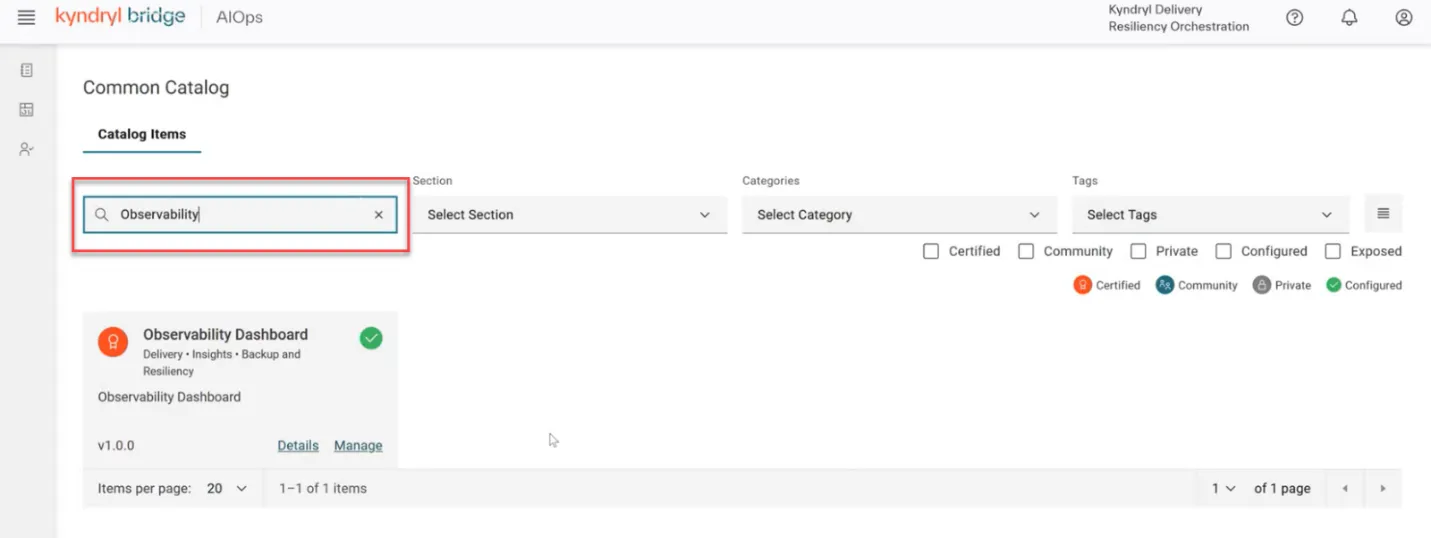
- Click Enablement.
- In the search field of the Common Catalog screen, type the name of the dashboard.
- Click Manage.
- Click Subscribe.