Get access through ARMS
The Automated Roles Management System (ARMS) is used by applications inside Kyndryl. It helps these applications manage user's authorization by:
- Taking control of the storage of role assignments.
- Providing an API to easily retrieve data.
- Performing daily role re-validation.
The ARMS solution delivers improved role management to local applications.
ARMS covers access control management, delegations, and re-validation of accesses as required by ITCS104. This application stores data for more than 18,000. This data is used by more than 20 applications. The application was deployed in IMTs: NA, LA, and EMEA.
Required links
Use the following links to access ARMS for requesting access to Intelligent Recovery Service:
- Production: https://bat.bats.kyndryl.net/arms2/user/myAssignments
- Development and Staging: https://eu1sr1lnarms-dev.bats.kyndryl.net/arms2/user/myAssignments
Prerequisite
Connect to Cisco Secure Client (AnyConnect VPN).
Access request
Intelligent Recovery Service is hosted on the Artificial Intelligence for IT Operations platform. To get access to the Intelligent Recovery Service, users must request access with the appropriate privileges. Upon approval, the user can perform operations according to their assigned roles and privileges.
Before proceeding with access requests, review the following descriptions of the Role:
Role descriptions
The role currently available under Incident recovery menu to enable user to perform actions on Intelligent Recovery Service. Along with the following roles, user need to raise access to respective Artificial Intelligence for IT Operations service with the right privileges for insights & automation module.
- Incident Recovery Admin: Possesses the highest level of access, enabling all actions permitted for the editor and viewer roles, in addition to administrative tasks such as configuring global settings applicable only to Intelligent Recovery Service.
- Incident Recovery Editor: Individuals in this role are authorized to create, configure, and delete resiliency entities, initiate data collections, and execute workflows or automations applicable only to Intelligent Recovery Service.
- Incident Recovery Operator: Currently not in use.
- Incident Recovery Viewer: Grants read-only access, allowing individuals to view resiliency entities without permissions for execution, creation, configuration, or deletion applicable only to Intelligent Recovery Service.
- Insights service administrator: Enables users to subscribe to the dashboards of Intelligent Recovery Service.
- Incident Recovery Primary Approver: Grants authority to review and approve workflow execution requests at the first level of the approval process. Individuals assigned to this role can assess submitted execution requests and either approve or reject them before they proceed to the secondary approval stage.
- Incident Recovery Secondary Approver: Grants authority to review and approve workflow execution requests at the second and final level of the approval process. Individuals assigned to this role can assess requests that have received primary approval and provide final authorization for workflow execution.
- Incident Recovery Zerto Operator: Individuals in this role are authorized to execute only Zerto workflows. This role enables users to initiate resiliency operations through Intelligent Recovery Service.
- Incident Recovery Commvault Operator: Individuals in this role are authorized to execute only Commvault workflows. This role enables users to initiate resiliency operations through Intelligent Recovery Service.
Access types
There are two types of access in ARMS: Standard and Advance. The Standard access enables users to access the service with limited capabilities, while the Advance access enables users to perform the advanced capabilities. The following table describes the access details that you get when you select Standard or Advance.
Environment | Standard access | Advanced access |
|---|---|---|
Production | [AIOps] Resiliency Orchestration - aiops-viewer [Insights] Resiliency Orchestration - bundle-aiops-analytics [Insights] Resiliency Orchestration - bundle-automation [Insights] Resiliency Orchestration - bundle-backup-and-resiliency [Insights] Resiliency Orchestration - bundle-environment-build-and-decommission [Insights] Resiliency Orchestration - bundle-event-management [Insights] Resiliency Orchestration - bundle-growth [Insights] Resiliency Orchestration - bundle-hardware-and-software-currency [Insights] Resiliency Orchestration - bundle-identity-and-access-management [Insights] Resiliency Orchestration - bundle-inventory-management [Insights] Resiliency Orchestration - bundle-mainframe-management [Insights] Resiliency Orchestration - bundle-performance-and-capacity [Insights] Resiliency Orchestration - bundle-security-and-compliance-management [Insights] Resiliency Orchestration - bundle-service-maintenance [Insights] Resiliency Orchestration - bundle-service-management [Insights] Resiliency Orchestration - bundle-storage-management [Insights] Resiliency Orchestration - bundle-transformation-management [Extensions] Resiliency Orchestration - extension-viewer [Inventory] Resiliency Orchestration - inventory-viewer | Select the specific access that you need to get advanced capabilities. |
Staging | [AIOps] Resiliency Orchestration - Staging - aiops-viewer | Select the specific access that you need to get advanced capabilities. |
Development | [AIOps] Resiliency Orchestration - Dev - aiops-viewer [Automation] Resiliency Orchestration - Dev - automation-viewer | Select the specific access that you need to get advanced capabilities. |
Standard access
To raise the standard access request to the development and staging environments, refer to the following screen, and select the options accordingly:
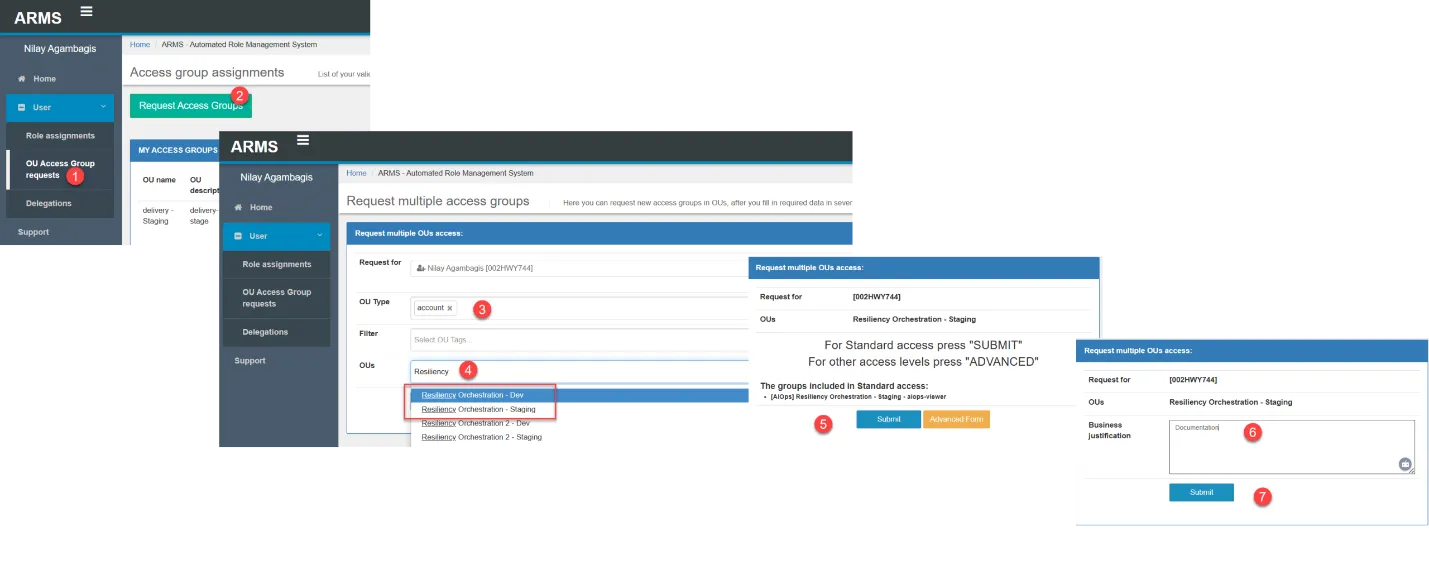
- Click OU Access Group Request.
- Click Request Access Group.
- From the OU Type drop-down, select account.
- In the OUs field, type Resiliency. The relevant options for the Resiliency OU appear.
- Based on your requirement, select Resiliency Orchestration -Dev or Resiliency Orchestration - Staging.
- Click Submit. You get the options to select Standard or Advance. Click Standard.
- Add a business justification and click Submit.
Advance access
Access request for incident-recovery-viewer
To view the Incident Recovery dashboards, you need the OUs access to the Automation and Insights along with the Incident Recovery.
- Login to ARMS.
- Follow the instructions provided in the following infographic:
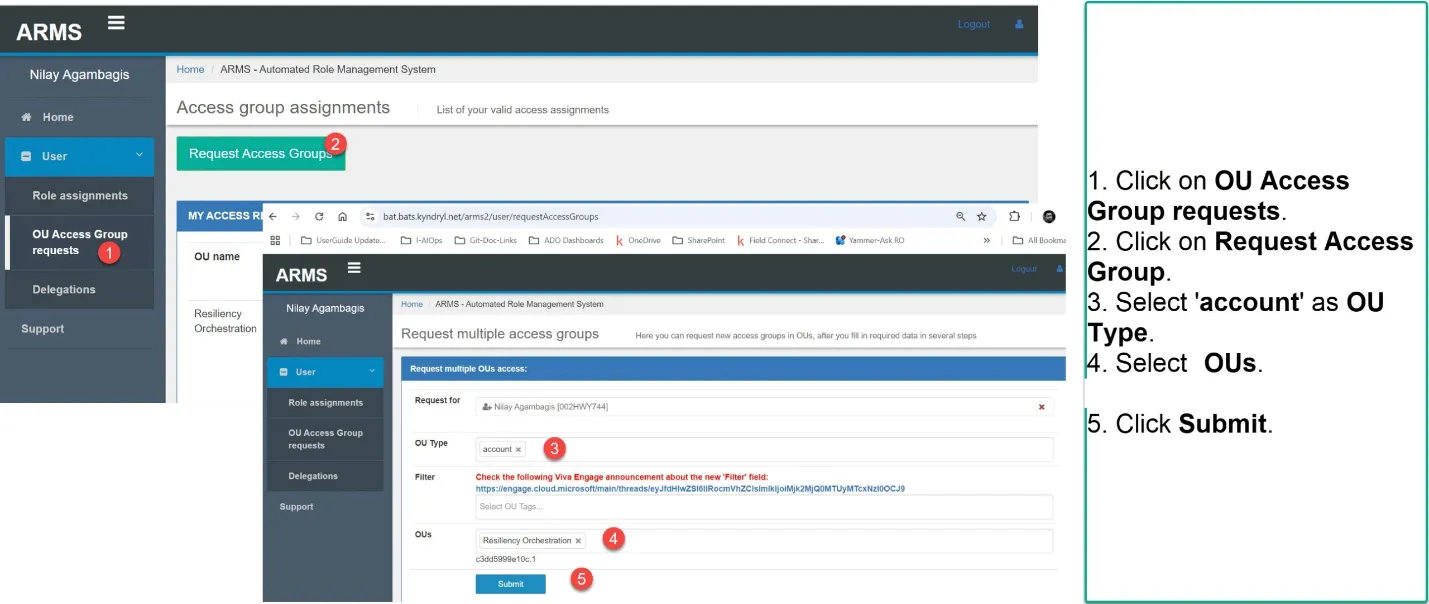
- Request multiple OUs access page appears on your screen.
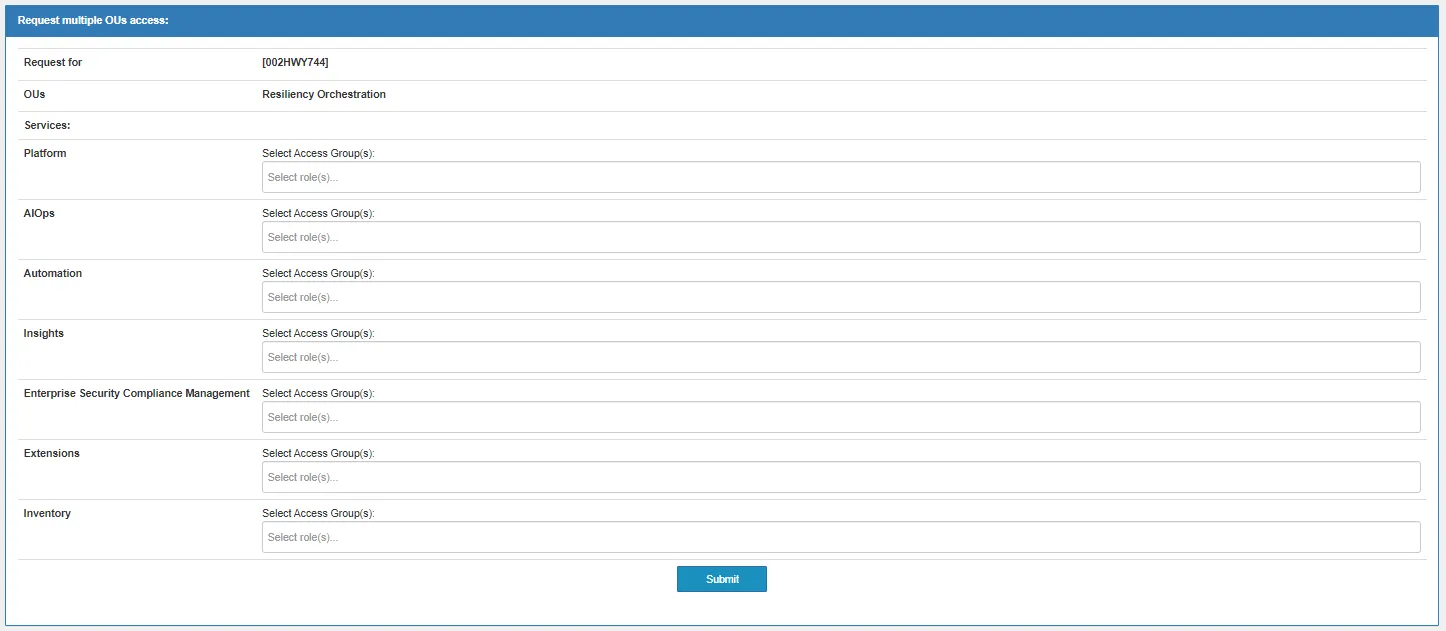
- In the Automation field, select automation-viewer.
- In the Insights field, select bundle-backup-and-resiliency.
- In the Incident Recovery field, select Access Groups(s) as incident -recovery-viewer.
- Click Submit.
- Provide the business justification. Click on Submit.
Once submitted, your approver receives an approval request. The account DPE or delegate is the approver of requests. Once approved, you can access the Intelligent Recovery Service application from the UI of I-AIOPs.
Access request for incident-recovery-admin
For the incident-recovery-admin role, you need the OUs access to the Automation, Insights, and Extensions along with the Incident Recovery.
- Login to ARMS.
- Follow the instructions provided in the following infographic:
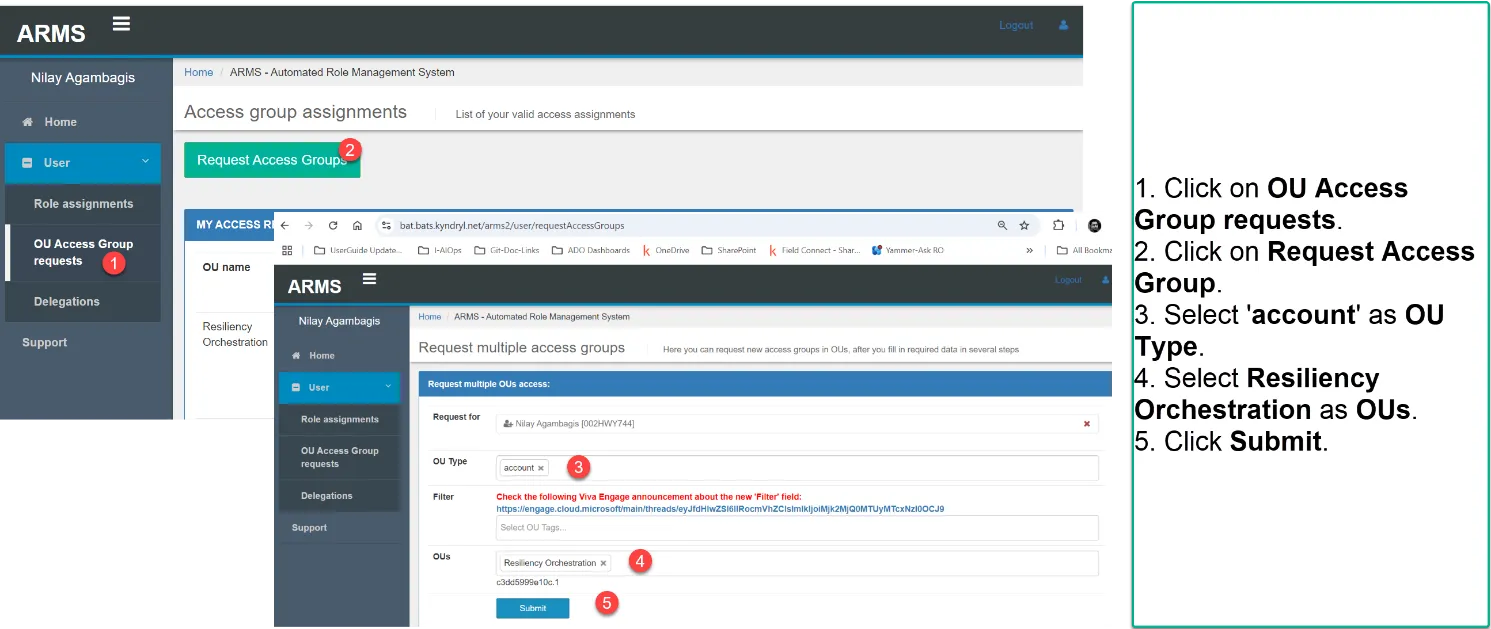
- Request multiple OUs access page appears on your screen.
- In the Automation field, select automation-admin.
- In the Insights field, select bundle-backup-and-resiliency.
- In the Extensions field, select Access Groups(s) as extension-editor. For more information on the Resiliency Data Protection extension, see Resiliency Data Protection extension.
- In the Incident Recovery field, select Access Groups(s) as incident -recovery-admin.
- Click Submit.
- Your approver receives an approval request.
- Once your request is approved, you can access the Intelligent Recovery Service application from the UI of I-AIOPs.
Access request for incident-recovery-editor
For the incident-recovery-editor role, you need the OUs access to the Automation and Insights along with the Incident Recovery.
- Login to ARMS.
- Follow the instructions provided in the following infographic:
- Request multiple OUs access page appears on your screen.
- In the Automation field, select automation- editor.
- In the Insights field, select bundle-backup-and-resiliency.
- In the Incident Recovery field, select Access Groups(s) as incident -recovery-editor.
- Click Submit.
- Your approver receives an approval request.
- Once your request is approved, you can access the Intelligent Recovery Service application from the UI of I-AIOPs.
Access request for insights-service-administrator
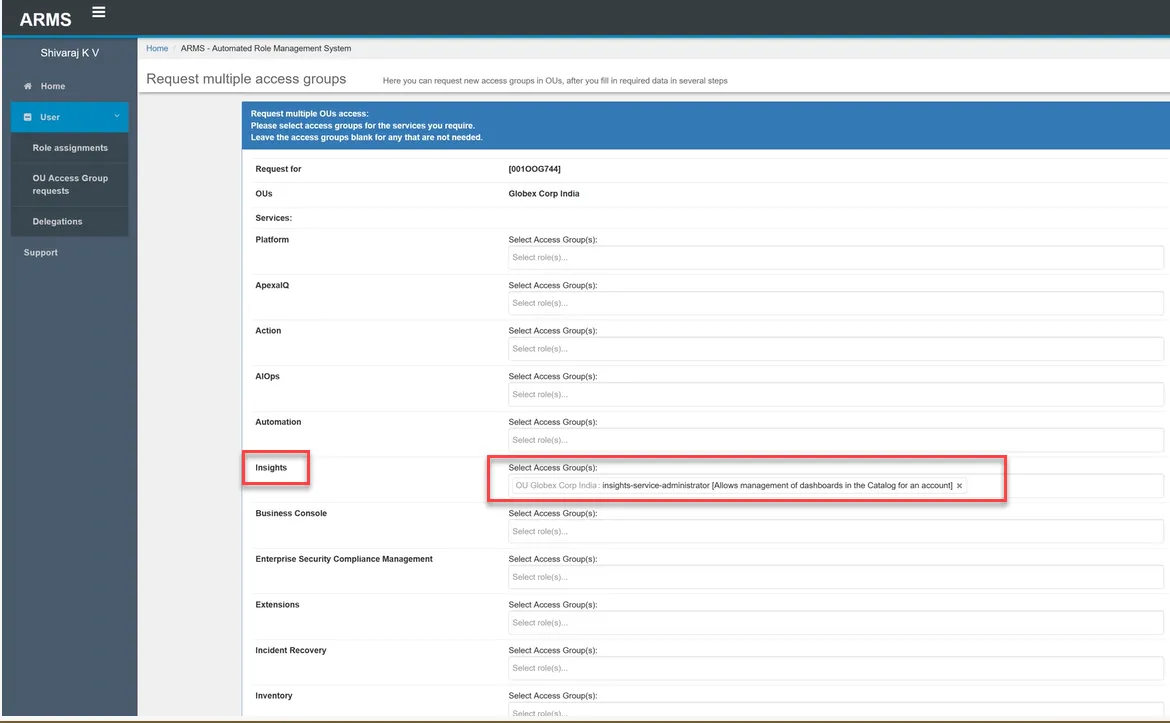
Under the Insights tab, select Insights-service-administrator role to be able to subscribe to the dashboards of Intelligent Recovery Service. Once your access request is approved, you can subscribe to the dashboards of Intelligent Recovery Service.
Access request for incident-recovery-primary-approver or incident-recovery-secondary-approver
For the incident-recovery-primary-approver role, you need the OUs access and incident-recovery-viewer. Some other workflows require both L1 and L2 approvals. In such cases, the request is first routed to the level 1 approver and, upon approval, is forwarded to the Level 2 approver for final approval.
Follow these steps to get L1 and L2 roles through ARMS:
- Go to: https://bat.bats.kyndryl.net/arms2/user/accessAssignments
- Click AIOPs Assignment and then click Request Access Groups button.
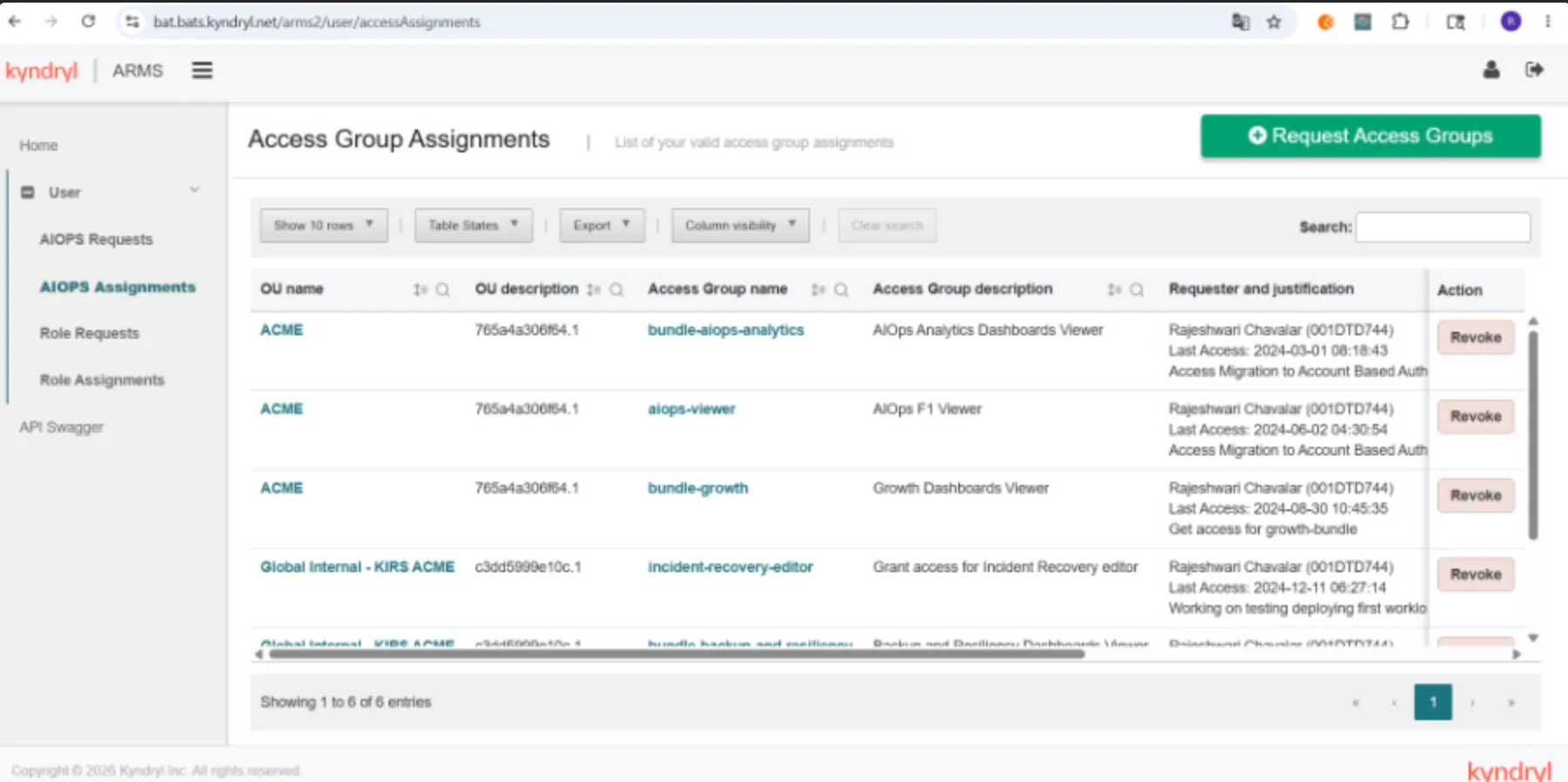
- A new page for requesting the access group is displayed.
- Enter the following information:
- OU Type: Select account.
- OUs’s: Select Global Internal-KIRS ACME
- Click Next.
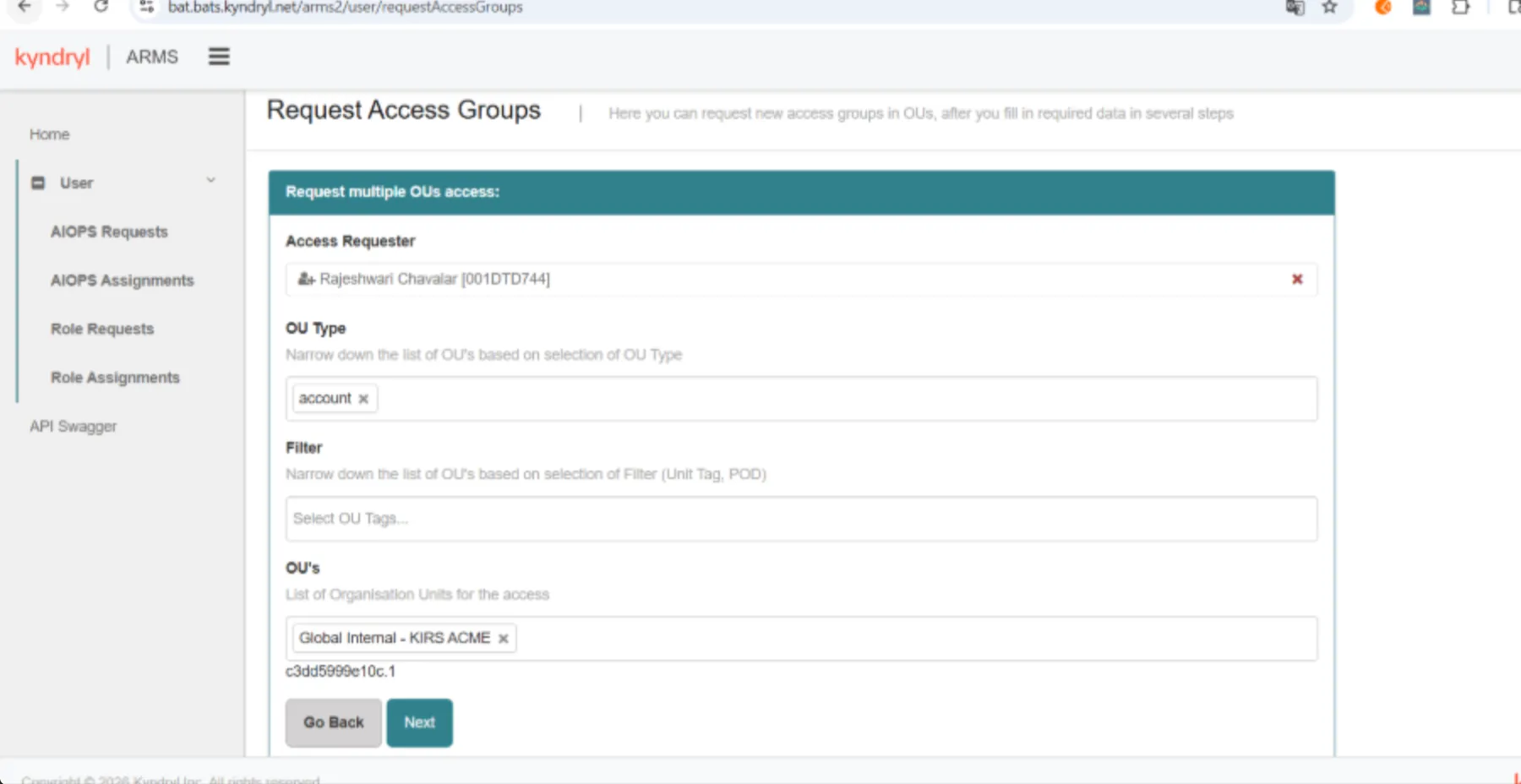
- Click Advanced Form tab.
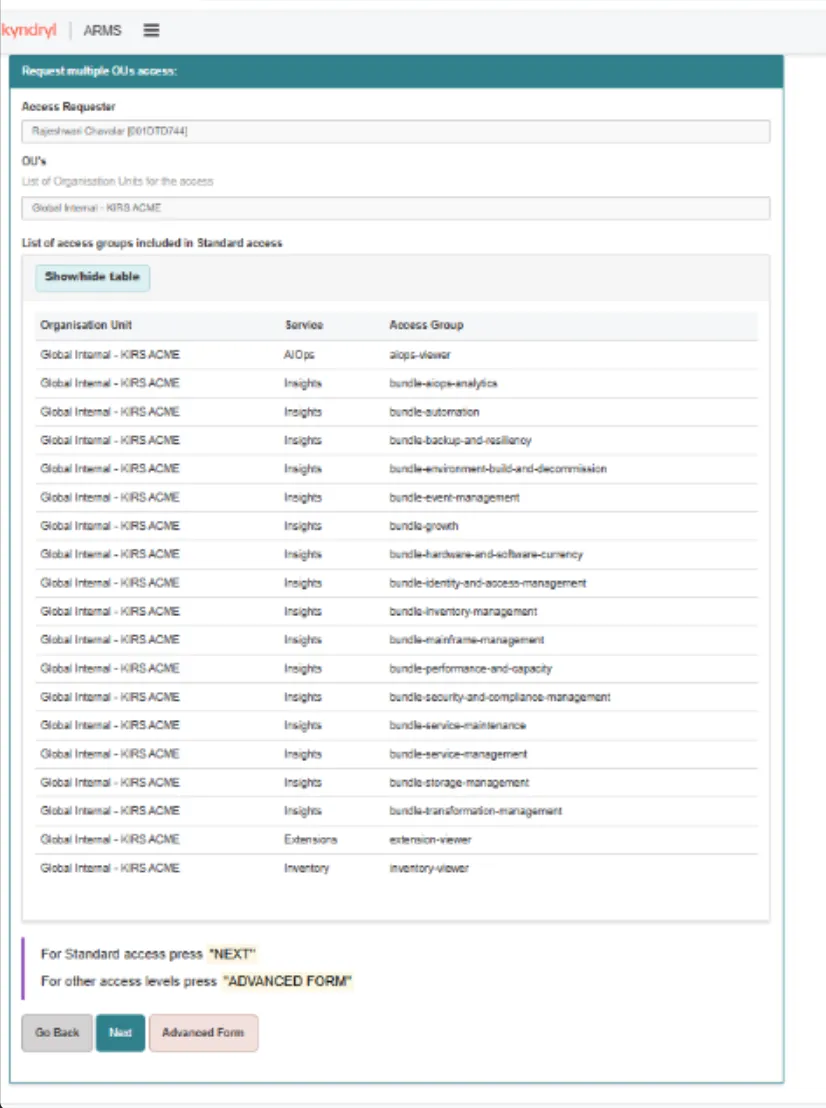
- A new page is displayed. Go to Intelligent Recovery Service field.
- Select the primary and secondary approver roles as applicable.
- Click Next.
- Provide a Business Justification.
- Click Submit button.