DSRR Candidacy
The DSRR Candidacy page provides a centralized experience for monitoring work items as they progress through the DSRR process. It enables Release Managers and Development Managers to track approval readiness, review pending sign-offs, identify violations and exceptions, and determine whether work items are ready to advance through DSRR Entry and DSRR Exit stages.
Approver configurations are defined in the DSRR Approval Management page, and the required approvers have been assigned for each approval type. These prerequisites allow the system to accurately validate approvals, track compliance and support release readiness decisions.
Roles and permissions
The DSRR Candidacy page is available to users with access to Developer Experience. Available actions depend on the user's assigned role.
Role | Permissions |
|---|---|
|
|
Development Manager |
|
DSRR Candidacy access
Follow these steps to enable the features:
- From the Kyndryl Bridge main menu
 , go to Services → Platform Services → Toolchain & Pipeline → DevOps Intelligence.
- From the left navigation menu, navigate to DevSecOps & Software Readiness Review
- On the DevSecOps & Software Readiness Review page Select DSRR Candidacy Timeline tab.
DSRR Candidacy page
The DSRR Candidacy tab provides a high-level view of application readiness throughout the DSRR process. It helps you track approval status, identify items requiring attention and monitor progression through DSRR Entry and DSRR Exit stages.
The Release Readiness Summary section displays key metrics that provide insight into the current state of work items and approval activities.
The following summary cards are available:
- DSRR Entry Pending Signoff: Displays work items that are awaiting one or more required approvals before completing the DSRR Entry stage. For each work item, you can review outstanding approvals, identify responsible approvers, view approval status information, and determine which sign-off requirements must be completed before the item can proceed to the next stage of the release readiness process.
- DSRR Entry Approved: Displays work items that have met all required DSRR Entry approval requirements and are ready to proceed to the staging phase. Work items in this section have completed all mandatory sign-offs configured in DSRR Approval Management and are prepared for the next stage of the release process.
- DSRR Exit Pending Signoff: Displays work items that are awaiting one or more required approvals before completing the DSRR Exit stage. For each work item, you can review outstanding approvals, identify responsible approvers, view approval status information, and determine which sign-off requirements must be completed before the item can progress toward production readiness.
- DSRR Exit Approved: Displays work items that have satisfied all DSRR Exit approval requirements and are ready to proceed toward production release. Work items in this section have completed all mandatory sign-offs configured for the DSRR Exit stage and are prepared for production deployment.
- DSRR Exceptions: Displays work items that received DSRR approval even though one or more required approvals were not completed. Exceptions typically occur when a Release Manager overrides outstanding sign-off requirements and approves the work item, providing visibility into approval overrides during the DSRR process. Separate counts are provided for DSRR Entry and DSRR Exit exceptions.
- DSRR Exit Violations: Displays work items containing invalid approvals, such as sign-offs completed by users who are not designated approvers for the corresponding approval type. Violations help identify situations where approvals were provided by unauthorized users rather than the approved contacts configured for that approval type. Separate counts are provided for DSRR Entry and DSRR Exit violations.
Work Items table
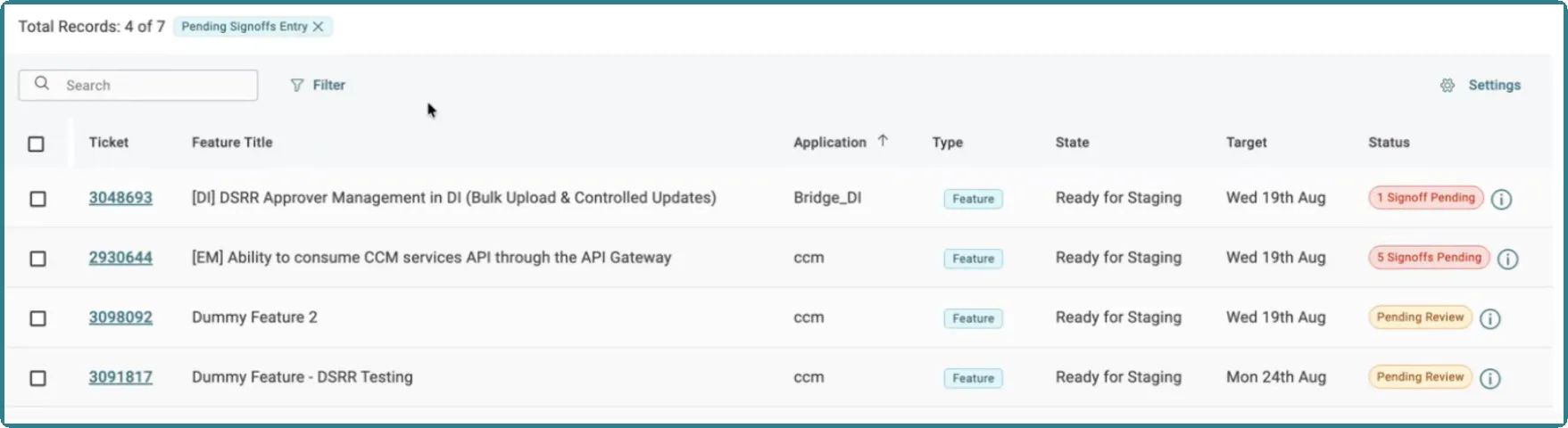
The Work Items table provides detailed information about items within the selected DSRR readiness category. Use it to track approval progress, assess release readiness and identify work items that require attention before progressing to the next stage of the DSRR process. Select the Information icon next to a work item to view additional approval and readiness details. Work items can also be searched, filtered and reviewed individually to help you quickly locate specific items and examine their approval and release readiness status in greater detail.
The following information is displayed in the table:
- Ticket: Unique identifier of the work item.
- Feature Title: Name of the feature, user story, or work item.
- Application: Application associated with the work item.
- Type: Type of work item, such as Feature, User Story, Bug and Data Science (DS).
- State: Current stage of the work item in the DSRR process.
- Target: Planned release date for the work item.
- Status: Current approval status, including pending sign-offs, pending review and approved.
Users can perform type-ahead searches using Ticket ID, Title, Application and Work Item Type, making it easier to locate specific DSRR entries. Users can also filter records by Work Item Type to narrow the displayed results and quickly locate relevant records.
DSRR stages
Work items pass through DSRR Entry and DSRR Exit approval stages. Before a work item can be approved for merge or release, the system validates the required tags and conditions, including DSRR Entry approval and completion of the risk and impact fields. The validation applies to both standalone work items and work items linked to a parent. Together, these stages provide a structured approval process that helps improve governance, visibility and release readiness throughout the application lifecycle.
DSRR Staging Entry
The DSRR Entry stage verifies that all required approvals have been completed before a work item can proceed to the next stage of the release process. Required sign-offs are determined by the DSRR Approval Management configuration.
The following sign-off approvals are available and can be configured as required approvals for a work item:
- Product Delivery Manager (PDM)
- Architecture
- UX
- SVT
- DevOps
- TechOps
Approval requirements may vary depending on the application and configuration. Only approvals marked as mandatory in the Release Readiness Approver Management page must be completed before the work item can progress through the DSRR process.
DSRR Exit
The DSRR Exit stage validates production readiness before a work item progresses toward release completion. During this stage, the system tracks approval status and highlights items that require attention before they can advance to production.
DSRR Staging Exit required approvals include:
- DSRR Staging Exit required approvals are:
- QA(IST)
- Runtime Security
- Engineering
- Operations
- EA Certification
- Security
- Documentation
This categorization provides visibility into the current status of work items and helps ensure all required approvals are completed before release progression.
Viewing Sign-off details
Use the sign-off details view to review approval status, approval history and release readiness information for a specific work item. This information helps you understand the current approval stage, identify any pending approvals and determine what actions are required before the item can proceed through the DSRR process. Follow these steps to view a work item information:
- From the Kyndryl Bridge main menu , go to Services → Platform Services → Toolchain & Pipeline → DevOps Intelligence.
- From the left navigation menu, select DSRR Candidacy feature.
- In the Work Item table, locate the work item and click on the Information (i) icon associated with it.
- The Sign-Off Details panel provides detailed approval and release readiness information for the selected work item.
- Select Review & Act to review approval requirements, sign-off status and pending actions. If you have the required permissions, you can take action directly from this panel.
- Select Close to return to the associated Azure DevOps work item and review DSRR Entry and Exit details, approval progress and sign-off information.
Work items approvers
Each work item is associated with one or more approvers who are responsible for providing the required sign-offs before the work item can progress through the DSRR process. The following considerations apply to approver assignments:
- Approvers are configured in the DSRR Approval Management page for each approval type.
- Multiple approvers can be assigned to an approval requirement. However, only one approval from the designated list of approvers for that approval type is required to fulfill the approval requirement.
- Only sign-offs submitted by authorized approvers are considered valid. Sign-offs provided by users who are not assigned as authorized approvers are identified as Violations.
- Only users with the Release Manager or Development Manager role can modify approver assignments in the DSRR Approval Management page.
- Changes made to approver assignments are automatically reflected in the DSRR Candidacy page.
Work Item approval
Only Release Managers can review sign-off status, send notifications to stakeholders with pending approvals and approve work items. Before performing approval actions, Release Managers must create a valid ADO connection through Connection Management. This connection is required to synchronize DSRR approval actions and status updates with the associated ADO work items.
The connection name must use the format DSRR_user_ID. The user ID can be obtained from the user's token or tenant information. To learn how to create a connection, Tool connections - Home.
Follow these steps to approve a work item from DSRR Candidacy:
- From the Kyndryl Bridge main menu , go to Services → Platform Services → Toolchain & Pipeline → DevOps Intelligence.
- From the left navigation menu, select DSRR Candidacy feature.
- Select a work item and click Review & Act.
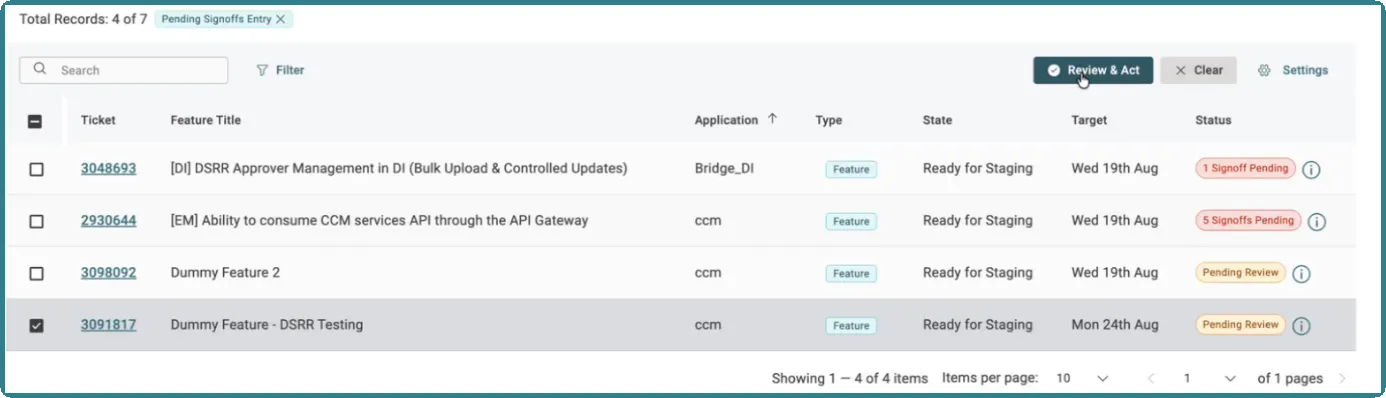
- The Review & Act - DSRR Entry dialog opens. Select the Approve tab and review the work item information.
- Select Approve. A confirmation notification is displayed indicating that the approval was successful.
- The system automatically updates the DSRR status in ADO, synchronizes the approval with the associated ADO work item, and adds an approval comment to the work item history. The following comment is automatically added: Approving the selected work item(s) for DSRR Entry. All signoff criteria have been reviewed and met.
Pending approval notifications
Release Managers can send notifications to stakeholders when required approvals are still pending. Notifications are delivered through email and In-App notifications to the approvers responsible for completing the outstanding sign-offs, helping ensure approval requirements are completed in a timely manner.
Automated reminder emails are sent before DSRR calls to notify approvers about pending actions. The email template summarizes pending approvals, outstanding sign-offs and the approvers responsible for completing each action so that release-tracking activities can be reviewed before the call.
This procedure allows authorized users to send a notification to approvers who have not yet completed the required approval actions for a work item:
- From the Kyndryl Bridge main menu , go to Services → Platform Services → Toolchain & Pipeline → DevOps Intelligence.
- From the left navigation menu, select DSRR Candidacy feature.
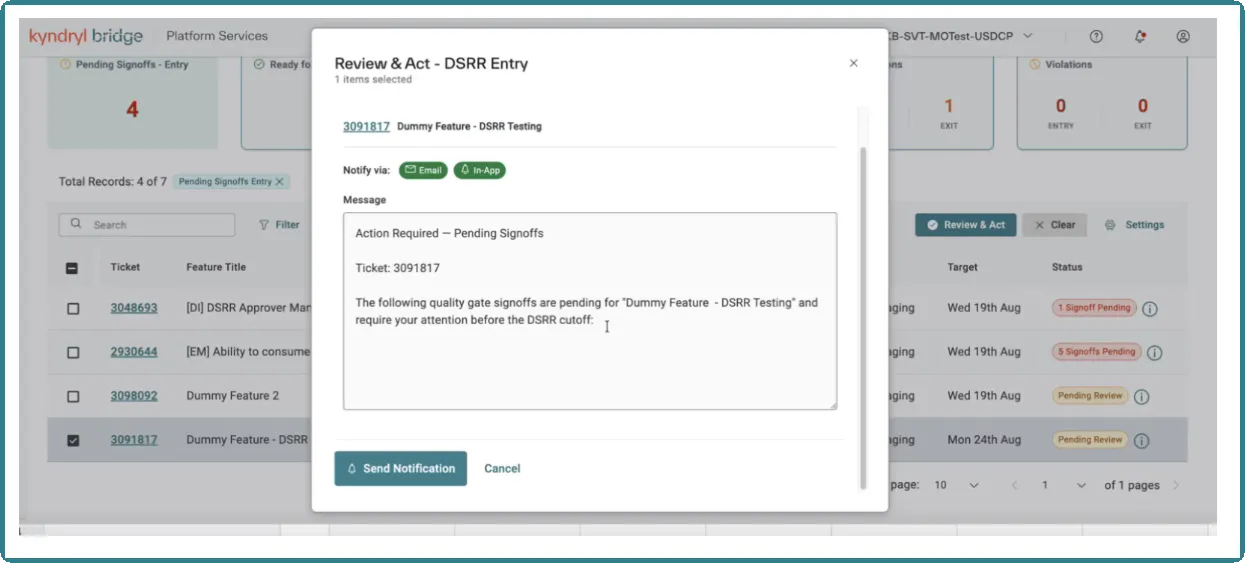
- Select a work item and click Review & Act. You can also click on the Information (i) icon associated with the work item.
- The Review & Act - DSRR Entry dialog opens. Select the Notify tab and review the work item information.
- Select Send Notification. Notifications are sent through both Email and In-App channels. A confirmation notification is displayed indicating that the notification was successful.
After a notification is sent, use the confirmation message to verify that the reminder was delivered through the available notification channels.
Work Item rejection
Only users with the Release Manager role can reject DSRR reviews. Reject a work item when it does not meet the required approval or release readiness criteria. Rejection prevents the item from progressing through the DSRR process and provides feedback to the work item owner, allowing them to address the identified issues and resubmit the item for review.
Follow these steps to reject a work item:
- From the Kyndryl Bridge main menu, go to Services → Platform Services → Toolchain & Pipeline → DevOps Intelligence
- From the left navigation menu, select DSRR Candidacy feature.
- Select a work item and click Review & Act.
- The Review & Act - DSRR Entry dialog opens. Select the Reject tab and review the work item information.
- Click Confirm Rejection. A confirmation notification is displayed indicating that the rejection was successful.
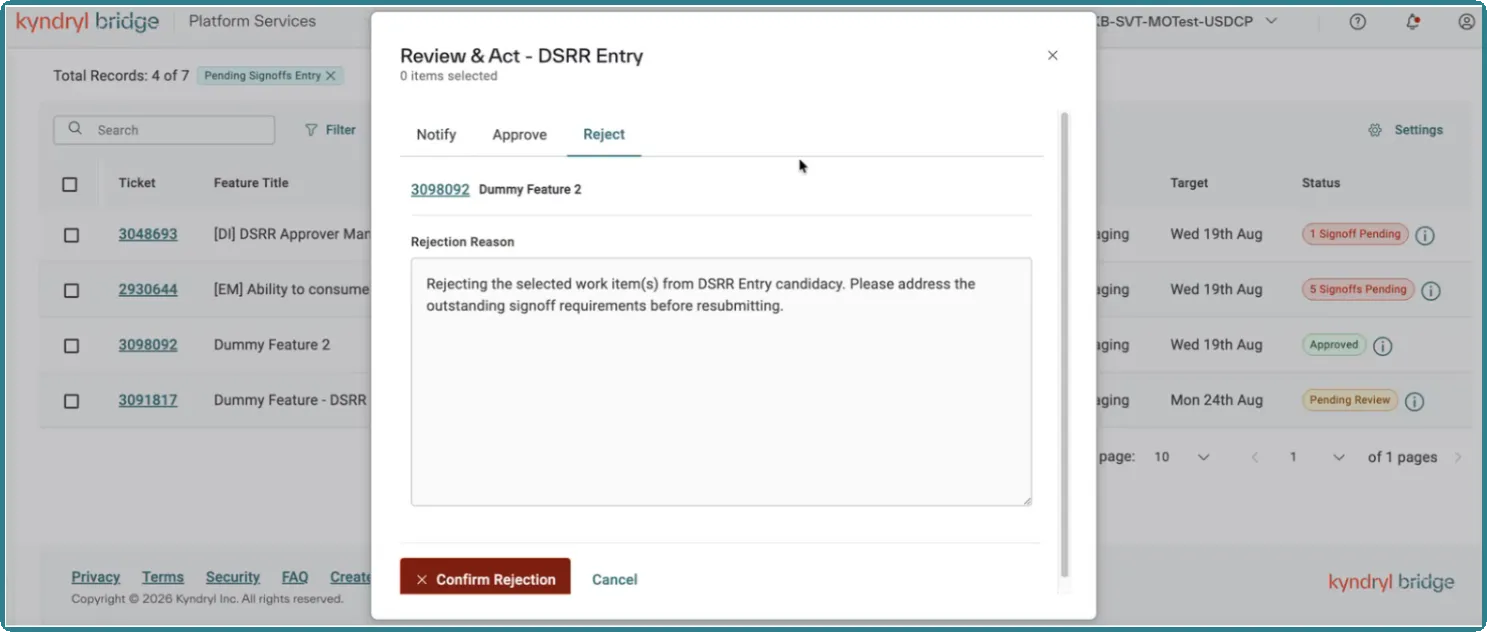
- The system automatically updates the DSRR status in ADO, synchronizes the rejection with the associated ADO work item, and adds a rejection comment to the work item history. The following comment is automatically added: Rejecting the selected work item(s) from DSRR Entry candidacy. Please address the outstanding signoff requirements before resubmitting.