Device Inventory Onboarding Support and Troubleshooting Guide
This document describes how to upload inventory and provides an overview of general troubleshooting tips and support procedures for the device inventory onboarding service.
Onboarding inventory assets
The following items are prerequisite to onboarding inventory assets:
- When the inventory file is uploaded to Netbox, each device should be set to its default status. Netbox supported statuses include the following:
- Offline
- Planned
- Active
- Stage Failed
- Inventory
- Network-admin role in ARMS or Ensure a tenant has been created in Netbox. If not, create a tenant with the correct GSMA code and bacid.
- The upload limit is 5,000 devices at a time
- Inventory input is converted to lower case except manufacturer and model. The manufacturer and model is entered exactly as it exists in the Inventory Catalog.
- Upon onboarding, devices not using IPv4 or IPv6 will be updated.
- The discovery rule enables Zabbix to validate submitted IP addresses against discovered IP addresses.
Post onboarding: IP validation
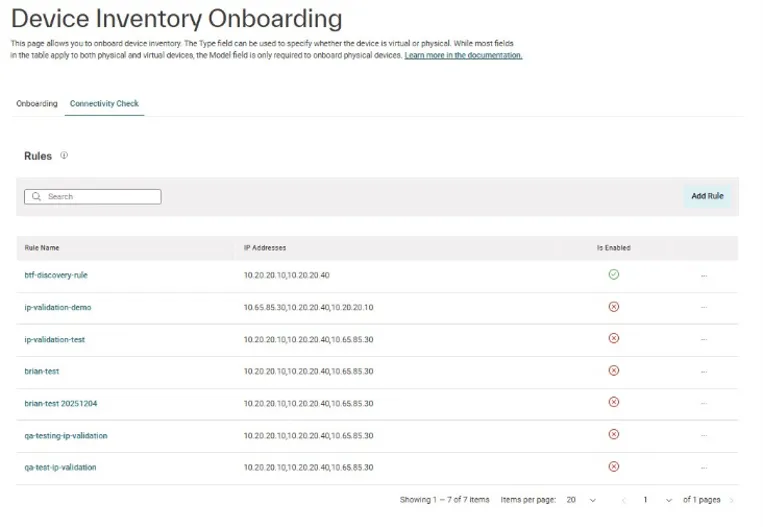
Kyndryl supports validation of submitted device IP addresses. After devices are onboarded, administrators can run a validation check using defined validation rules. Add a validation rule using the following procedure.
- Log into Bridge.
- Click the Hamburger menu located in the upper left corner of the header and select Artificial Intelligence for IT Operations --> Managed Network Services
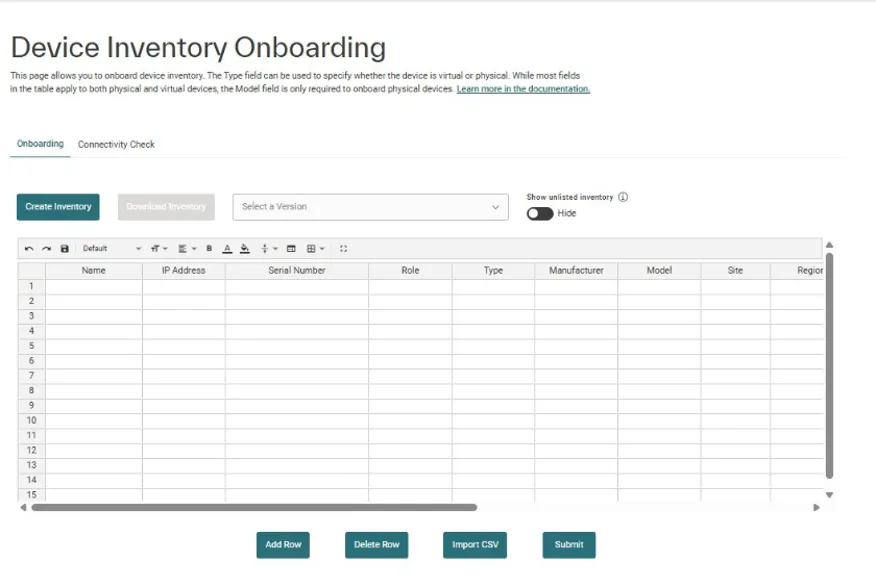
- Hover over Home and select Administration--> Inventory Onboarding. The service navigates to the Device Inventory Onboarding page:
- Click the Connectivity Check tab: