Access Managed Network Services Reports in Kyndryl Bridge
Prerequisites
- Ensure that you have access to Kyndryl Bridge.
- Ensure that you have a subscription to the Managed Network bundle to access Managed Network Servicesin Kyndryl Artificial Intelligence for IT Operations.
- Ensure that you have a subscription to the KMNS Service Catalog in Kyndryl Bridge.to access the KMNS home page.
Request access through ARMS
If you do not have the required permissions, submit an access request through ARMS.
Submit an access request
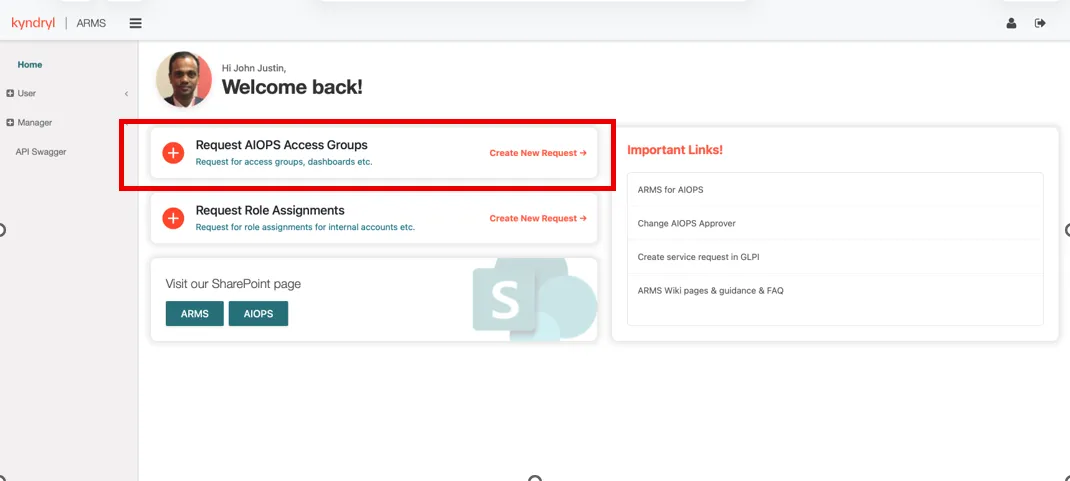
- Open the ARMS portal
- Select Request AIOps Access Groups.
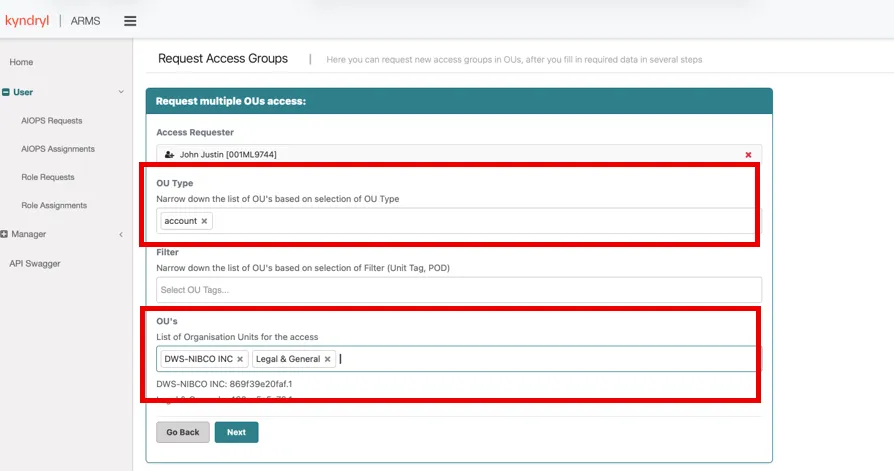
- For OU Type, select Account.
- In OU's, enter the account name.
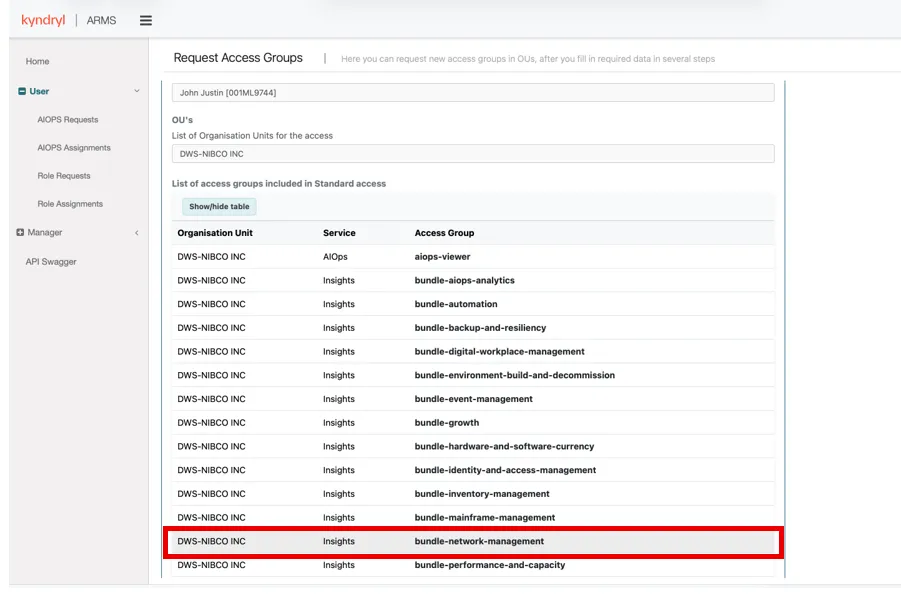
- Choose one of the following options:
- Standard Request to request the default access package.
- Advanced Request to manually select Network Dashboard access.
Access requests must be approved by the appropriate DPE. If approval is delayed or access is required urgently, contact the responsible DPE for assistance.
Subscribe to the KMNS service catalog
Subscribe to the KMNS service catalog if the Managed Network Services option is not available in Kyndryl Bridge.
Recommended subscribers
The recommended subscribers include:
- Users assigned Administrator
- Kyndryl Account Manager
- Kyndryl Delivery Team
- DPE
- CPE
- CollabDrive Administrator
- GTM Experience Administrator
Users with Viewer access generally do not need to subscribe unless they require proactive notifications or visibility into platform updates.
Submit a Subscription Request
- Open Kyndryl Bridge
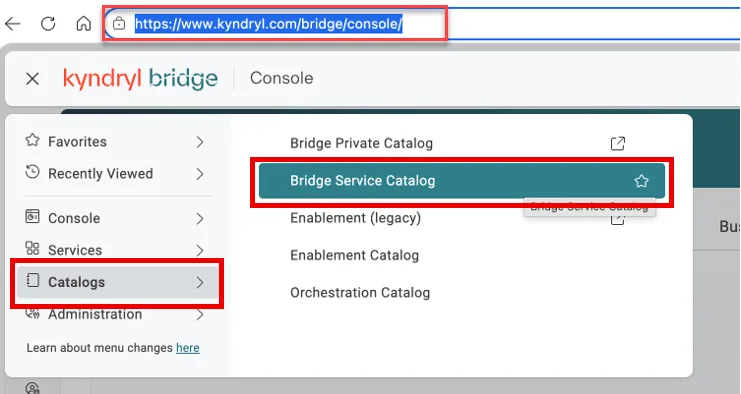
- Select Bridge Service Catalog.
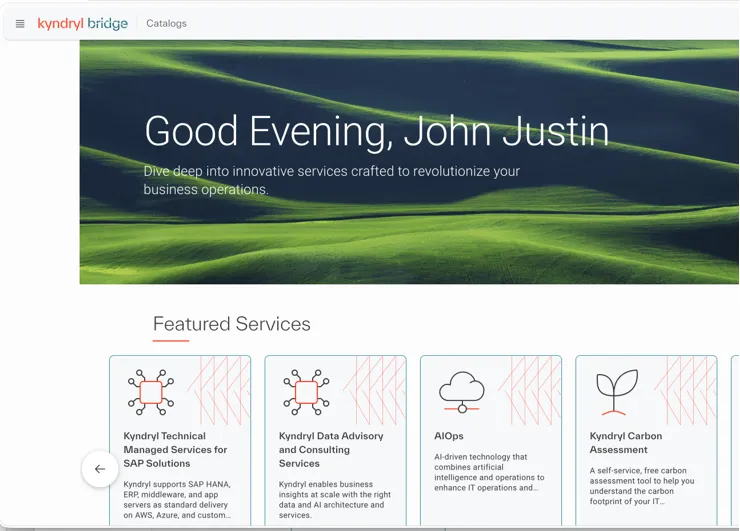
- In the search box, enter Managed Network Services.
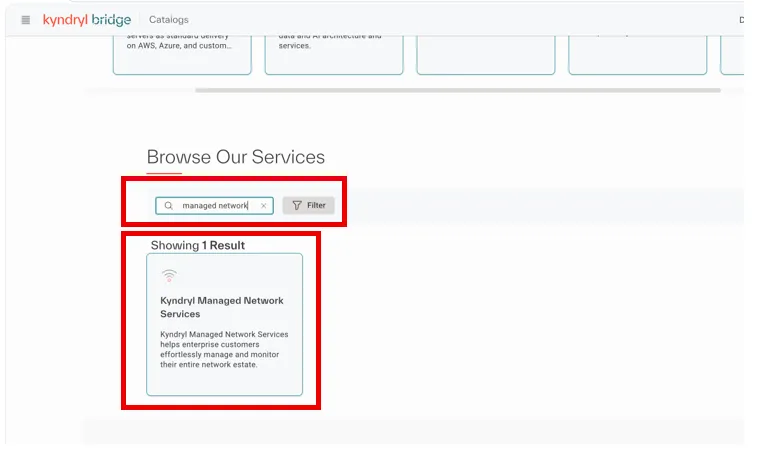
- Select KyndrylManaged Network Services.
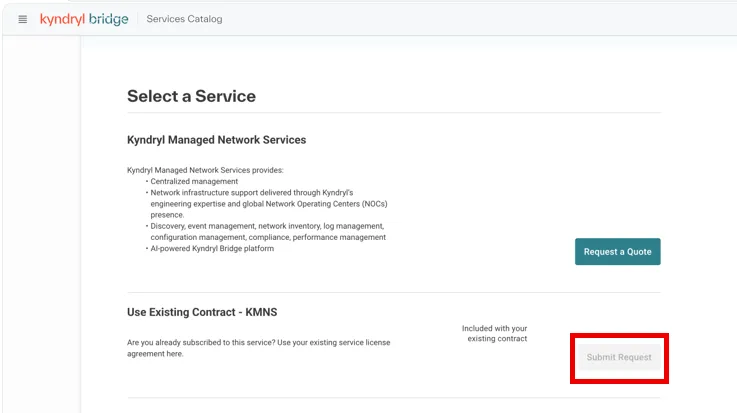
- Select Submit Request.
After the request is approved and the subscription is enabled, KMNS features become available in Kyndryl Bridge. If the Submit Request button is unavailable, the service is already subscribed for your account.
Subscription Activation Process
The following are the steps to be followed for activating the subscription requests:
- Log in to Kyndryl Bridge.
- Navigate to Administration.
- Open Bridge Access Management.
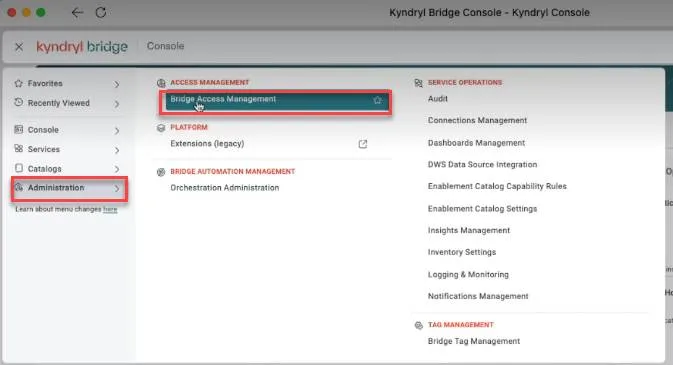
- Check your Access Groups.
- Confirm that you have the required Account Manager/DP role assigned.
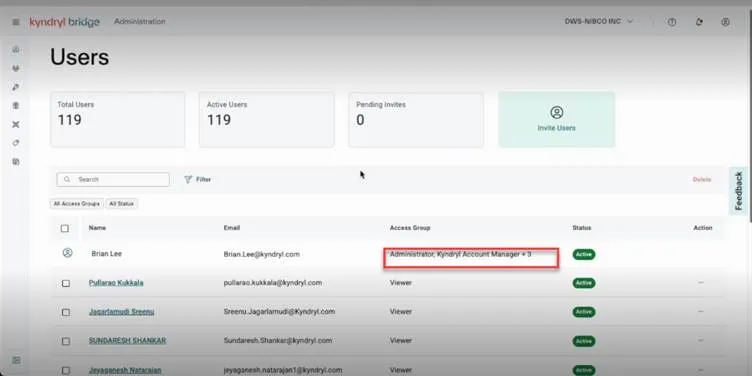
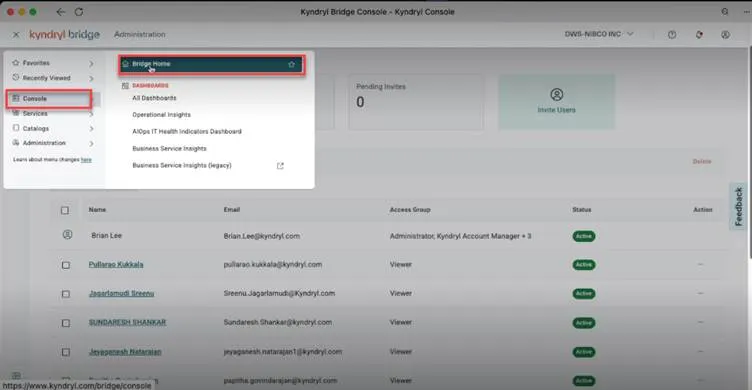
- Open the left-side hamburger menu.
- Select Console.
- Navigate to Bridge Home.
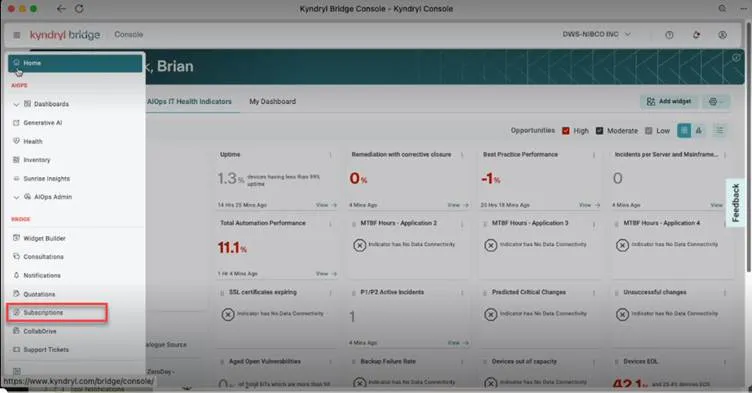
- In the left navigation pane, select Subscriptions.
- Find the subscription request that is in Validating state.
- Click the three dots (ellipsis) next to the subscription request.
- Select Review Request.
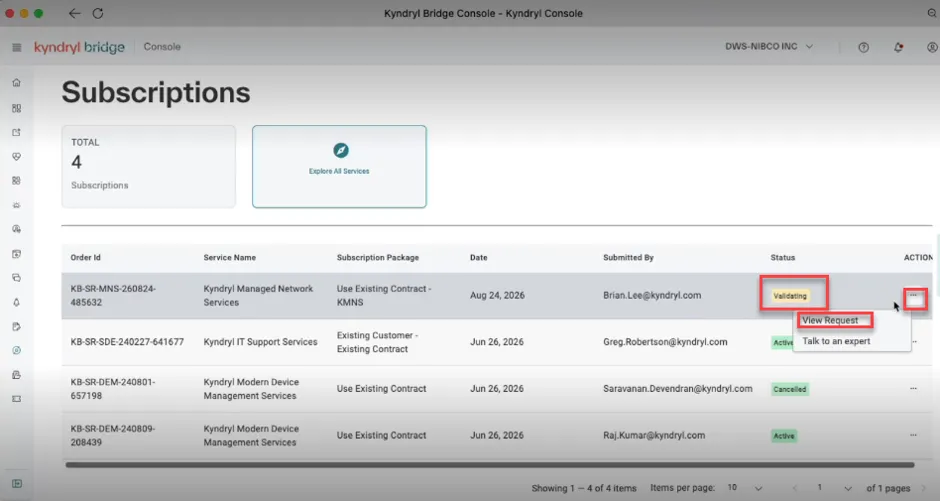
- Review the subscription request details by clicking Review Request button.
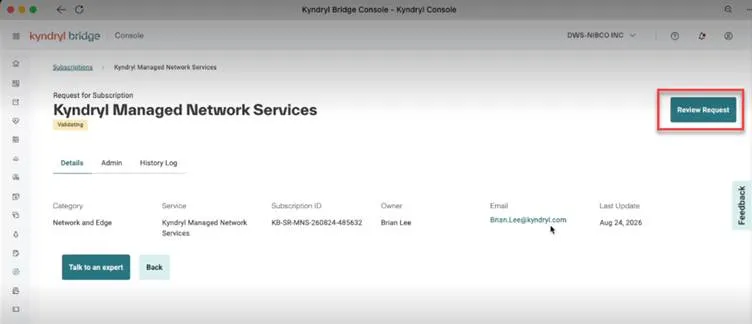
- Set the Start Date as required.
- Set the Expiry Date based on the desired subscription duration (for example, end of the year or one year from activation).
- In the comments section, enter Approved.
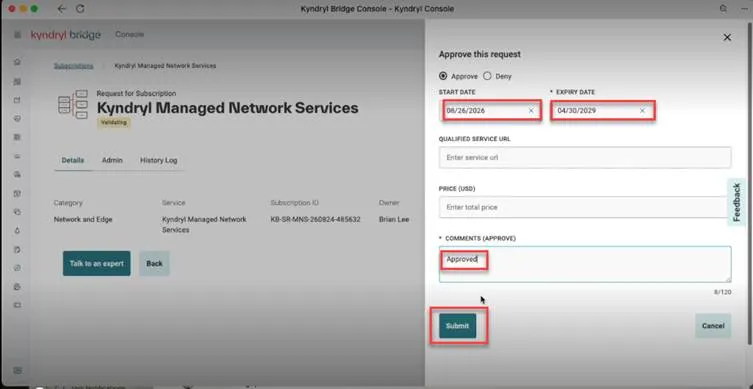
- Submit the request.
- After submission, the subscription status should change to Activating.
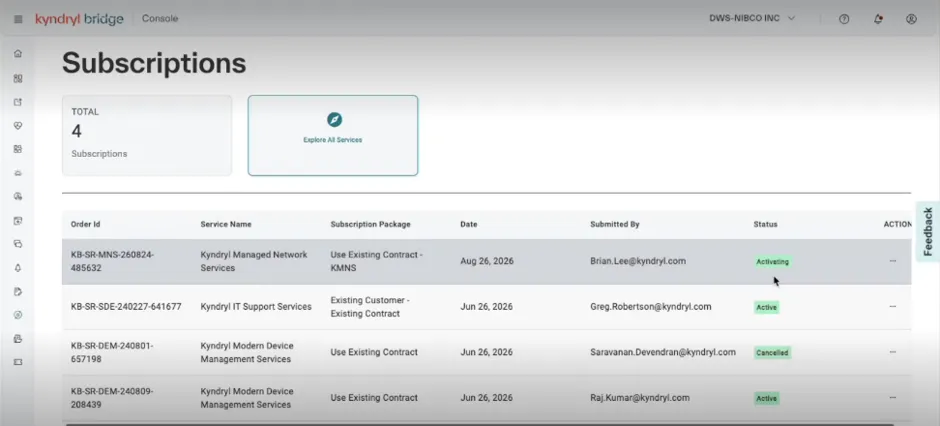
- Wait a few minutes for the process to complete.
- Refresh the Subscriptions page and verify that the subscription becomes Active.
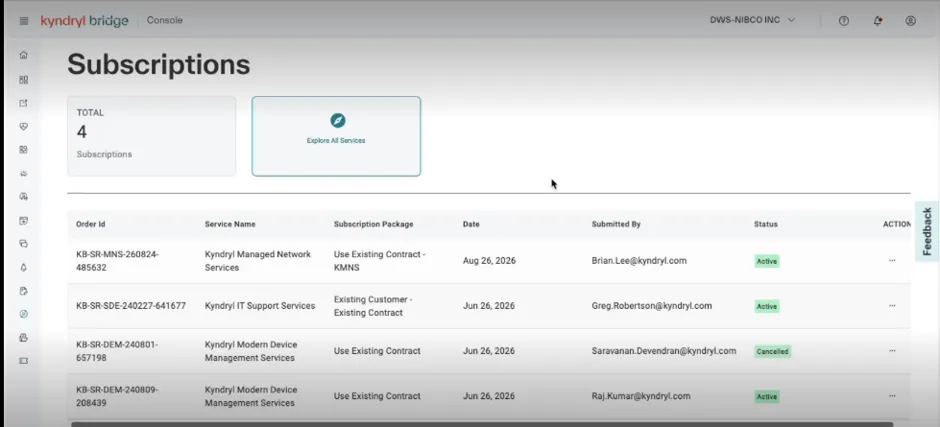
After successful activation of the subscription:
- Subscription status changes from Validating → Activating → Active.
- KMNS-related screens become available in Kyndryl Bridge.
- Users gain access to the new dashboards and capabilities associated with the subscription.